All members in one place
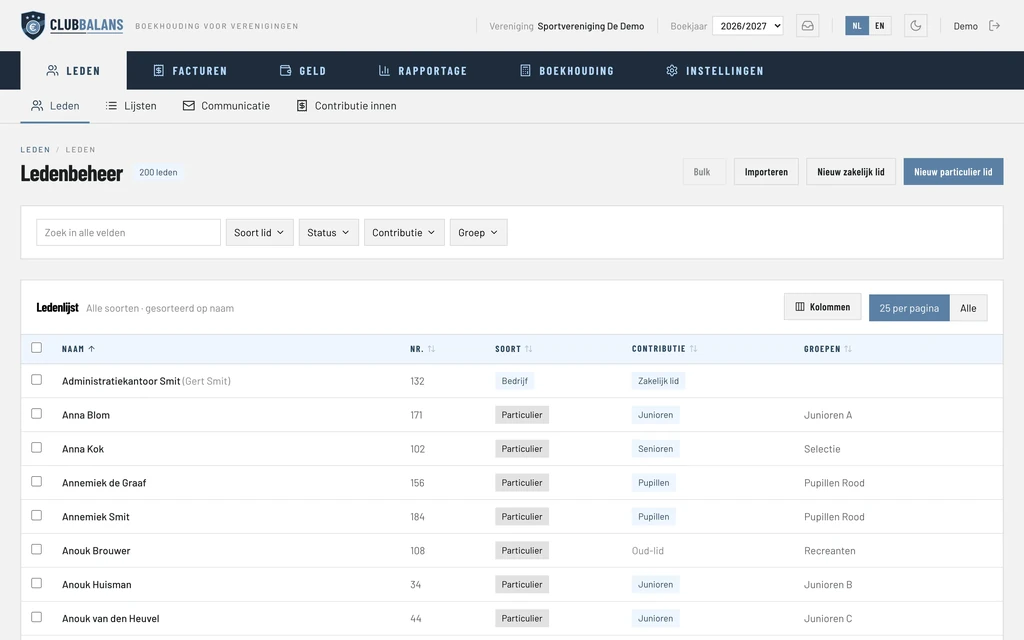
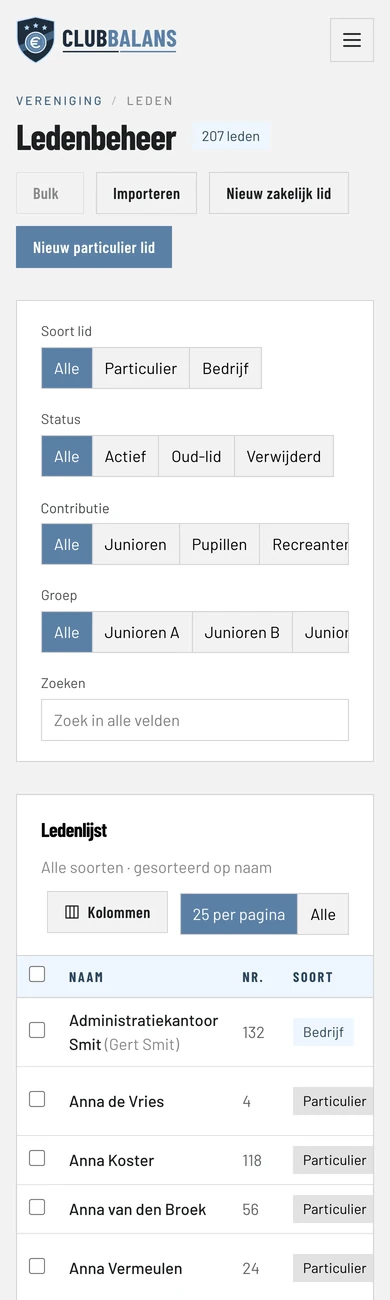
Every member has their own record with name, date of birth, email address and phone number. You search by name, email address or Chamber of Commerce number and filter by kind of member, status (active or former member) and membership fee. In a few clicks you see, for example, all active juniors.
ClubBalans knows two kinds of members:
- Private members: the players, parents, volunteers and supporters of your club.
- Company members: businesses such as sponsors, with a contact person, their own email address for invoices and an eight-digit Chamber of Commerce number.
Memberships with a start and an end
You decide which kinds of membership your club has, such as seniors, juniors, youth or supporting members, each with its own annual fee. A member gets a membership with a start date and, when they leave, an end date. When a member switches fee, for example from junior to senior, you choose Add membership fee and a start date: the running membership then ends the day before. With an end date you can also add a period in the past or a temporary one, and every period can be edited later. When a member does two activities that each have their own fee, you tick Alongside the running memberships: the member then has both memberships at the same time and pays both fees. Two periods with the same fee never overlap. If the member already has the new fee you get a warning, and gaps between two periods show on the member's page. A period can be deleted, except a running one that is already invoiced: you terminate that one. A deleted period stays visible in grey, but no longer counts. When a member leaves, you terminate the membership with an end date and a reason; you can move or cancel that termination later.
Because the whole history is kept, ClubBalans always knows who was a member on a given date. The membership fees use this, for example to charge pro rata for someone who joins halfway through the year. Read more under membership fees and invoices.
Every membership also shows which periods have been invoiced, with the invoice number and the amount. Whether you collect the membership fee per year, half year, quarter or month, you know right away until when a member has been invoiced and which period is still to come. A credited period shows as a negative amount.
Direct debit per member
When your club receives payments through our partner SitePack Payments, the page of every member has a Direct debit panel. When the member has signed a SEPA mandate, you tick it and enter the account holder, the IBAN and the date it was signed. ClubBalans checks the IBAN and creates a fixed mandate reference for the member. From then on the invoices of the member are collected on their due date. Read how that works under membership fees and invoices.
Your own fields for members
Every club keeps slightly different details. A sports club wants the federation number, a band the instruments and uniform size, and almost everyone wants to know who works shifts behind the bar. That is why you create your own fields under Settings, at Membership, next to the fixed fields such as name and address.
For each field you choose the kind:
- Text or number: with a minimum and maximum length, for example a federation number of 8 to 10 digits.
- Date: such as the date of a certificate of conduct or a medical check.
- Dropdown: one choice from fixed options, such as a shirt size.
- Checkboxes: one or more options, such as the tasks a volunteer takes on.
- Yes/no: a single checkbox, such as consent for photos on the website.
You decide whether a field is required and whether you want to filter on it. The fields then appear on the card of every member, where the member administrator fills them in. In the member list you show them as extra columns, filter on them and change them for several members at once. Every change goes into the change log.
Import your current member list
Moving from a spreadsheet or another package is easy. You upload an Excel (xlsx) or CSV file, and ClubBalans recognises most columns by itself, including those of your own fields. Anything it cannot map automatically, you map by hand. Afterwards you see exactly which rows were imported and which were skipped, with the reason.
Rather start from an empty file? On the import screen you download an Excel template to fill in yourself:
- A column for every field: from membership number, name and address to your own fields, such as a federation number or shirt size.
- Dropdowns: where the choices are fixed, such as the member type, the country, the membership type and your own dropdown and yes/no fields, you pick from a list instead of typing.
- No formatting trouble: membership numbers and postal codes with a leading zero and dates stay exactly as you type them.
For every member you also bring the membership along: the date someone became a member, the membership type and, for those who stopped, the end date. That way you import your former members in one go too, with their whole history for the member movement. Former members take no place in your subscription.
If you use direct debit, you include the mandates in the same file, with the columns account holder, IBAN and mandate signed on. A row with an IBAN and a date gives the member a mandate; when the account holder is empty, the name of the member is used.
When a member already exists, the row is skipped, or it updates the member if you switch that on: only filled cells are taken over. A row of a member deleted earlier restores that member with a new membership. The other way round, you export the member list, if your role may, with the same columns to a file you can import again after editing it.
Print a membership card
On the page of every member you find the button Print membership card. It opens a PDF in the size of a bank card (85.6 × 54 mm) with the name of your club, your logo, the name of the member and the membership number. A company member's card also shows the company name and the contact person. The card opens in a new tab, so you can print or save it right away.
Member movement: growth at a glance
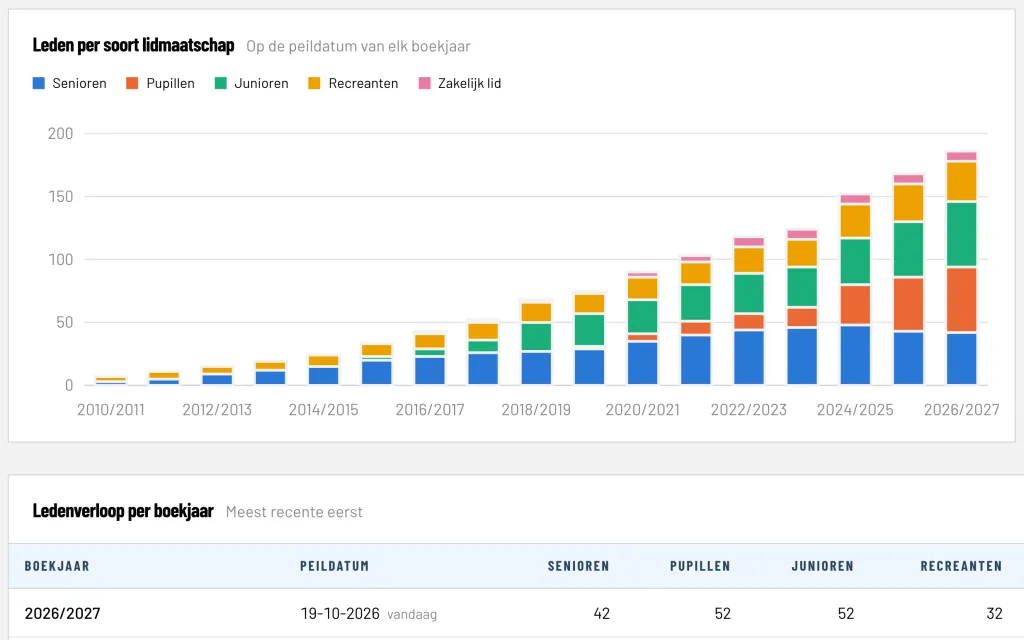
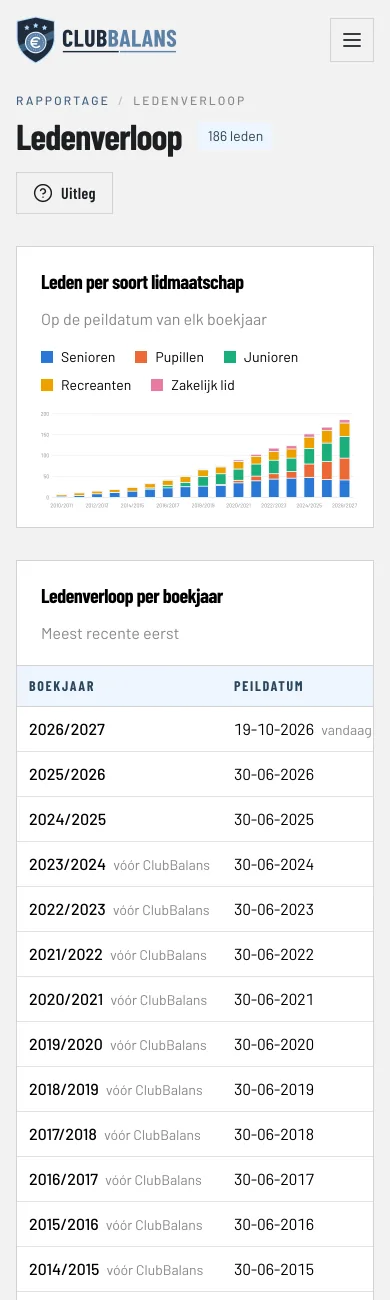
The member movement shows per financial year how many members you had per kind of membership, and how many joined and left during that period. Because memberships often go back further than the bookkeeping, ClubBalans also works out the years before. One chart shows how your club developed over the years, handy for the annual report or a grant application.
Lists of birthdays, anniversaries and termination reasons
Under Lists you find per month who has a birthday and which members celebrate an anniversary, such as 10, 25 or 50 years of membership. You will never forget a congratulation or a pin for a loyal member again.
The termination reasons are there too, per financial year: why members terminated their membership, and how many did so per reason. Handy to see why members leave. Memberships that ended because another membership fee took over are not counted.
Emailing your members
A message to all members, or just one team: under Communication you choose the groups, write the email with a simple editor and send it in one go. ClubBalans shows beforehand how many email addresses will receive it, and an address never counts twice, even when a member is in several groups. After a final confirmation you see per email address whether the email was sent, and you correct an address that does not work and send it again. Who may send mailings, you decide per role. Read the guide on emailing your members.
Let us set up your member administration
Rather not retype your member list? Send us your member list as an Excel file and we move your members over for free, with their memberships and your own fields. Read how it works at the free member import.
Secure and traceable
Every club has its own, isolated database. With roles and permissions you decide who may view members and who may change them, and the change log shows who changed what and when.