Step 1: find the inbox address of your club
Go to Settings (Instellingen) and choose Miscellaneous (Diverse). Under Invoices (Facturen) you find the email address for received invoices.
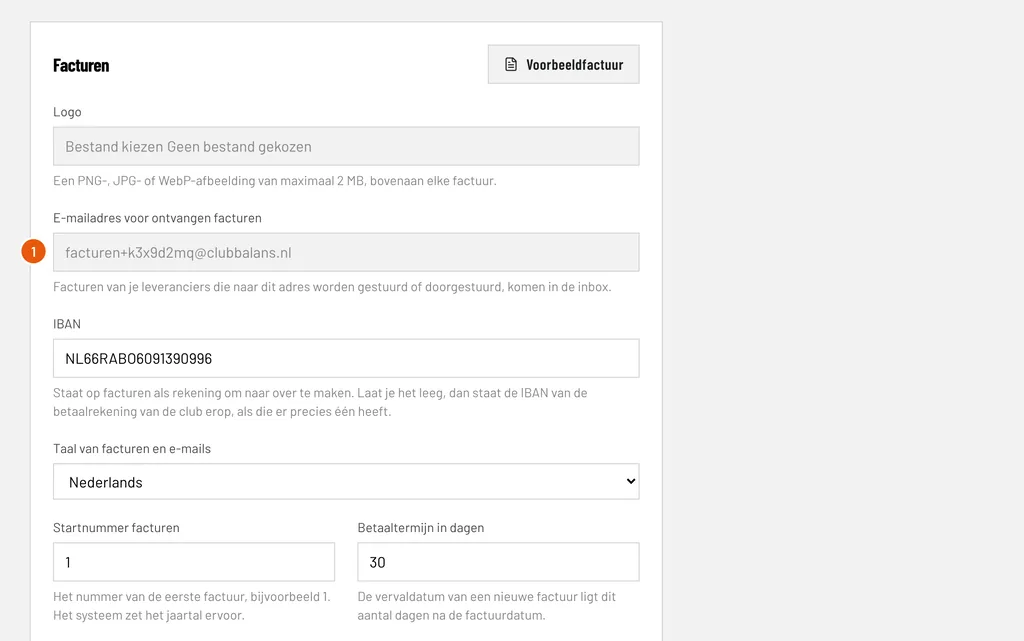
Email address for received invoices (E-mailadres voor ontvangen facturen): the address of your club, here facturen+k3x9d2mq@clubbalans.nl. The code is unique and cannot be guessed. Click in the field to select the address and copy it.
Give this address to your suppliers as the address for invoices, or simply forward an invoice that is already in your mailbox. Whatever you email to it lands in the inbox of your club without further steps.
Step 2: look at the inbox
Click the inbox icon at the top right, which also shows how many documents are waiting. Every invoice that has not been booked yet is here.
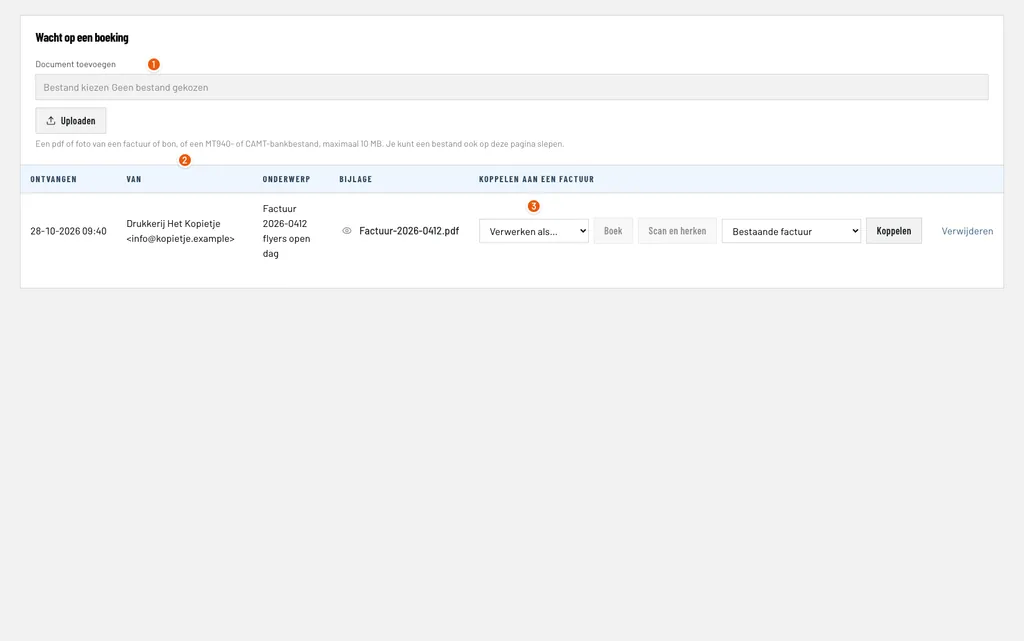
Add document (Document toevoegen): do you have an invoice or receipt on paper, or on your phone? Upload it here as a PDF or photo, of at most 10 MB. With the camera of your phone you take a photo of a receipt right away.
From (Van): the sender of the email, here drukkerijhetkopietje@example.com. Together with the subject and the date received you can see what it is.
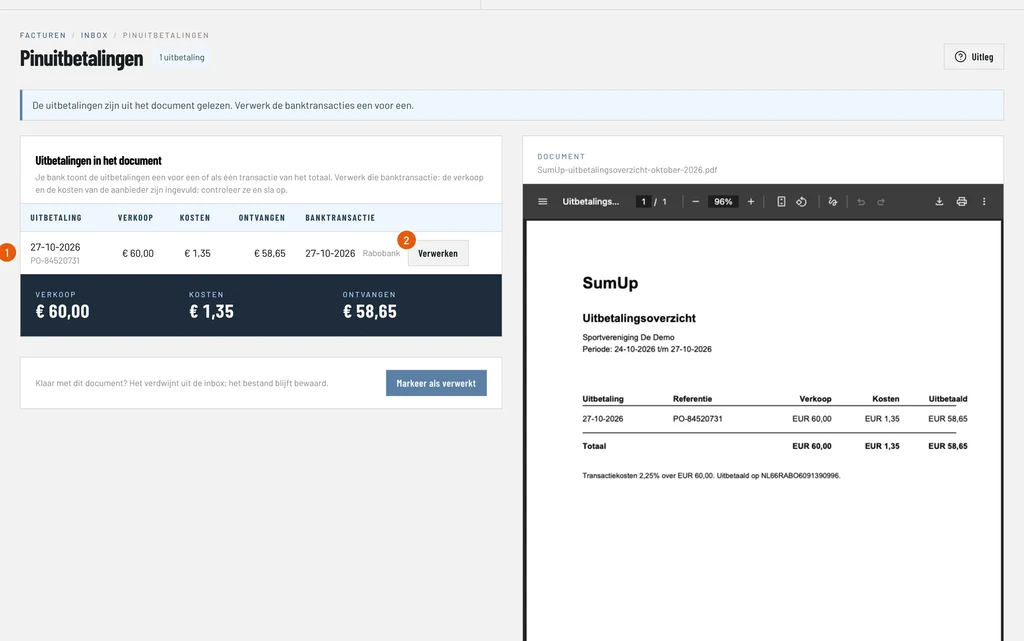
Process as… (Verwerken als…): choose how to process this document: as a New invoice (Nieuwe factuur, a new incoming invoice), as a Card payout (Pinuitbetaling) or, for a bank file, as a Bank file (Bankbestand). Book (Boek) takes you on. A document that has been scanned already has the Scanned (Gescand) label. If it belongs to an invoice you have already booked without an attachment, choose Existing invoice (Bestaande factuur) next to the document to link it.
Step 3: book the invoice
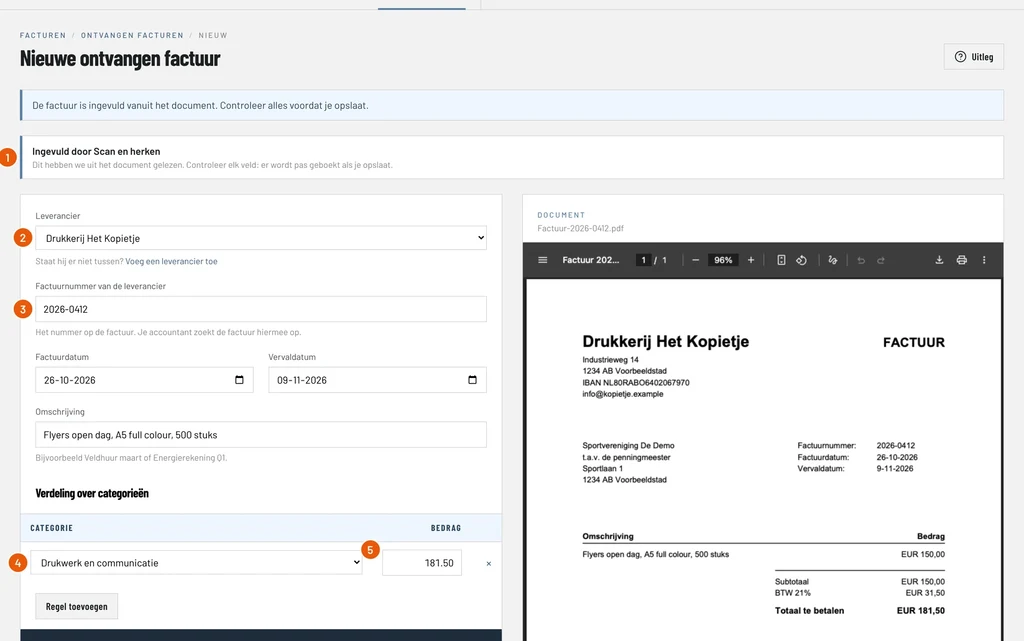
Choose New invoice under Process as… (Verwerken als…) and click Book (Boek). The form is on the left and the document from the inbox on the right, so you do not have to retype anything from another page.
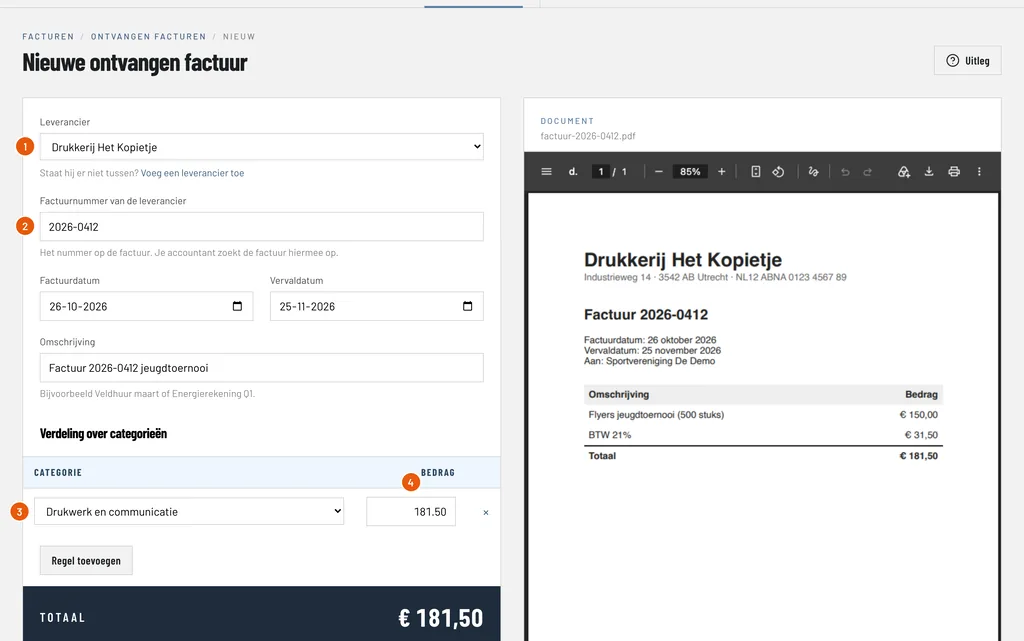
Supplier (Leverancier): ClubBalans picks the supplier itself, here Drukkerij Het Kopietje, because the sender address of the email belongs to that supplier. The description comes from the subject of the email.
Invoice number of the supplier: the number on the invoice, here 2026-0412. Your accountant uses it to find the invoice, and it keeps you from booking the same invoice twice.
Category (Categorie): what the costs fall under, here Printing and communication (Drukwerk en communicatie). If the invoice has more items, add a line per category.
Amount (Bedrag): the amount on the invoice, here € 181.50. The lines together must add up to the total of the invoice.
At the bottom of the form the PDF is already the attachment. Click Save (Opslaan): the invoice is now under Invoices (in the Received group, Ontvangen), the costs are in the bookkeeping and the amount is in the payables until you pay the invoice. The document disappears from the inbox.
Step 4: pay the invoice
Pay the invoice in your online banking and import the bank statement afterwards. ClubBalans recognises the payment from the IBAN of the supplier or the invoice number in the description, and suggests the open incoming invoice. You click Process and the invoice shows as paid. The steps are in the guide on processing bank statements.
If you pay in cash from the register, for example a small bill, you book that under Money (Geld), Cash (Kas) and Expenses (Uitgaven), where you choose the invoice you are paying.
Good to know
- Did you receive a credit note from the supplier? Book it from the original invoice and the invoice is settled automatically.
- A document in the inbox you do not need can be removed from the inbox. The file itself is kept.
- Who may book invoices is decided per role. Read more about roles and permissions.
- You find more about the bookkeeping under bookkeeping.