
Step 1: import the bank statement
In your online banking, download a statement in MT940 or CAMT.053 format. In ClubBalans go to Money (Geld), choose Import (Importeren) under Bank and select the file.
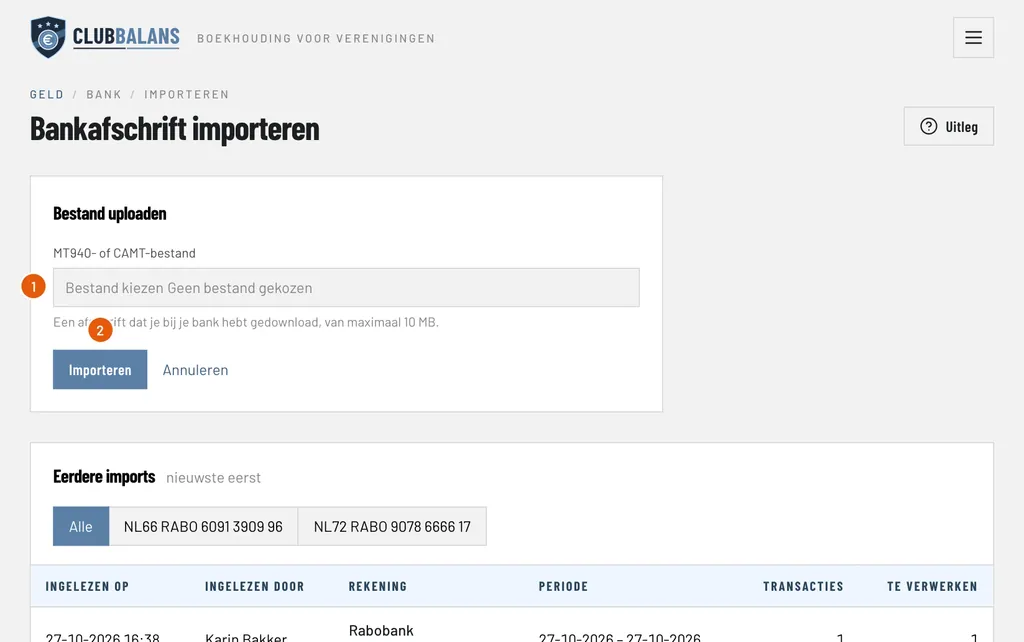
File (Bestand): choose the statement you downloaded from your bank, of at most 10 MB.
Import (Importeren): reads the file. ClubBalans recognises the bank account from the IBAN in the file. If the file holds an account the club does not have yet, it asks whether to add it.
Below the form you see the earlier imports, with who read them in and how many transactions are still to process. An import does not book anything: the transactions are only made available. Transactions you imported before are skipped, so overlapping periods are no problem.
Step 2: see what is to be processed
Go to Account (Rekening) and choose your bank account. The number next to the name, here 10 to process, is the number of transactions that still have to be booked.
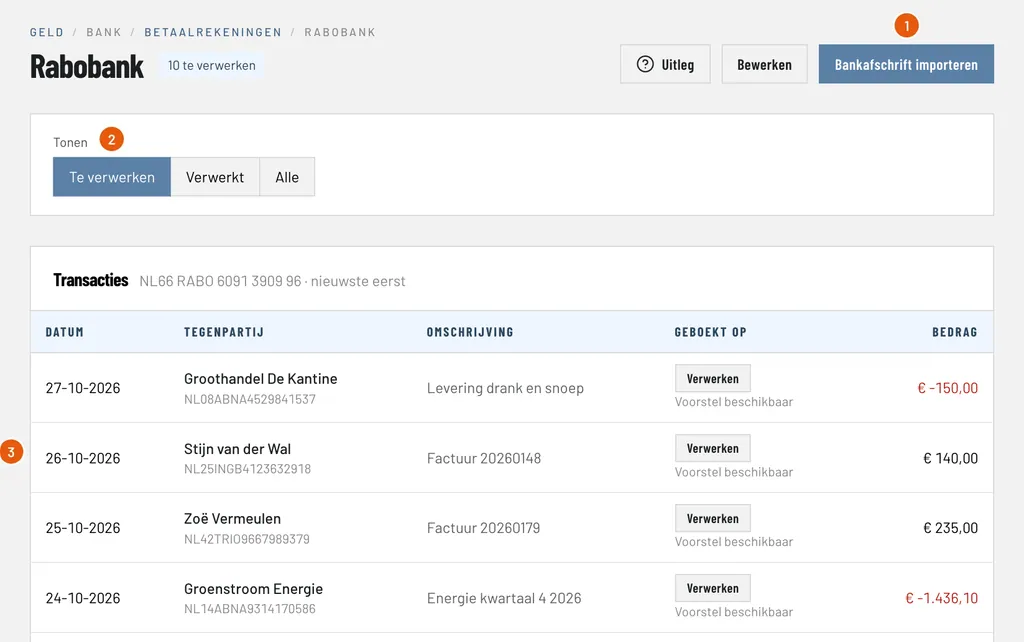
Import bank statement (Bankafschrift importeren): the quickest way to the import of step 1, from the account itself.
Show (Tonen): To process (Te verwerken), Processed (Verwerkt) or All (Alle). You start with To process.
Suggestion available (Voorstel beschikbaar): for this transaction, a payment by Stijn van der Wal with invoice number 20260148 in the description, ClubBalans has already worked out what it is booked on. Click Process (Verwerken) to open it.
Step 3: process a payment of a member
Open the transaction of Stijn van der Wal. At the top you see the details from the statement: the date, the counterparty, the description and the amount.
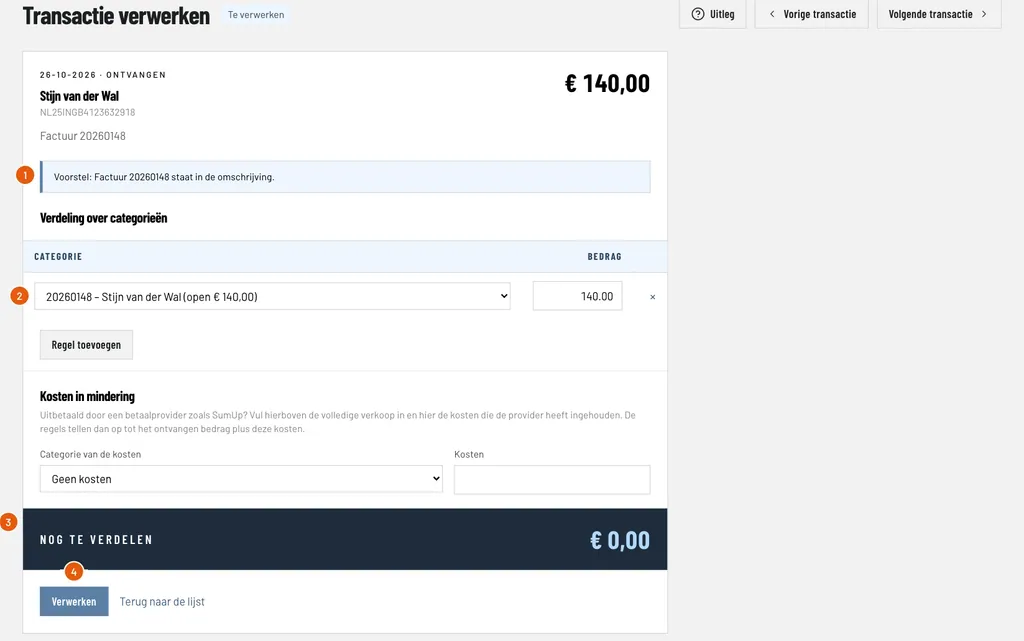
Suggestion (Voorstel): ClubBalans explains why it suggests this, here because invoice 20260148 is in the description. Other reasons are the IBAN, the amount, or an earlier booking of the same counterparty.
Distribution (Verdeling): the line books the payment on invoice 20260148 of Stijn, with the open amount of € 140.00. You can also choose a category, for example Donations or Sponsorship, or divide the amount with Add line (Regel toevoegen).
Still to distribute (Nog te verdelen): this has to be € 0.00 before you can save. That way the whole amount of the transaction is processed.
Process (Verwerken): books the transaction. The invoice then shows as paid and the transaction moves to Processed.
If a payment covers several invoices, for example a parent paying for two children, add a line per invoice. The payment is then divided over both.
Step 4: process a bill you pay
Expenses work the same way. Take the payment to Groenstroom Energie of € 1,436.10. The description does not mention an invoice number, but the IBAN belongs to an open incoming invoice of Groenstroom.
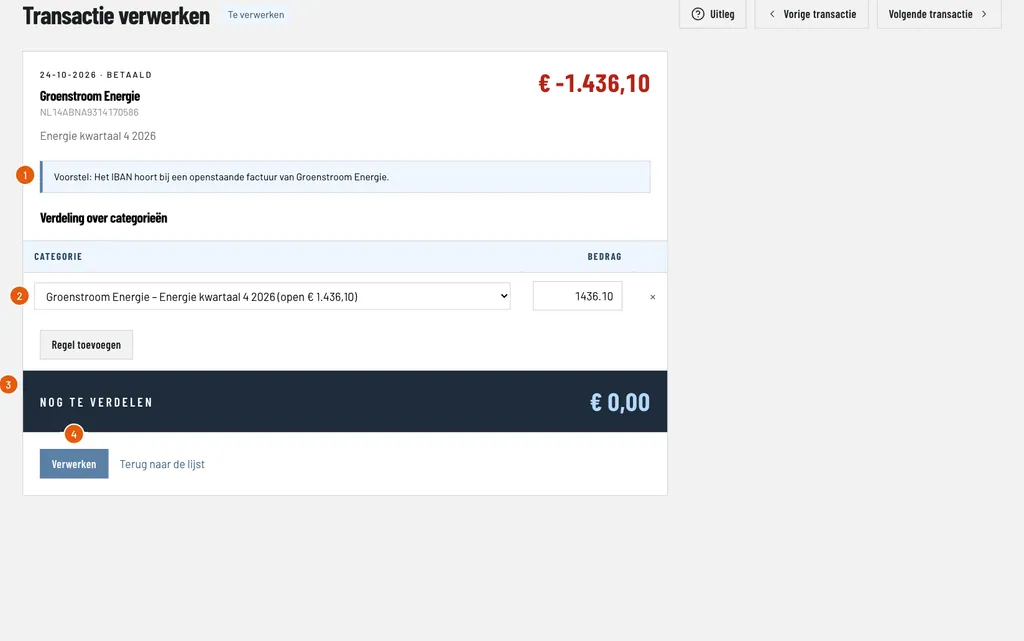
Suggestion (Voorstel): the IBAN belongs to an open invoice of Groenstroom Energie.
Incoming invoice: the line is on the incoming invoice Energie kwartaal 4 2026, with € 1,436.10 open.
Still to distribute: again € 0.00: the whole payment is distributed.
Process: books the payment and settles the incoming invoice.
If the incoming invoice is not there yet, book it first under Invoices (in the Received group, Ontvangen), or choose a cost category directly on the transaction. Invoices you email to the inbox address are covered in the guide on the invoice inbox.
Good to know
- The suggestions get smarter with every booking: a counterparty you booked before is suggested the same way next time.
- Processed transactions stay visible under Processed. You can undo a processing as long as the financial year is open.
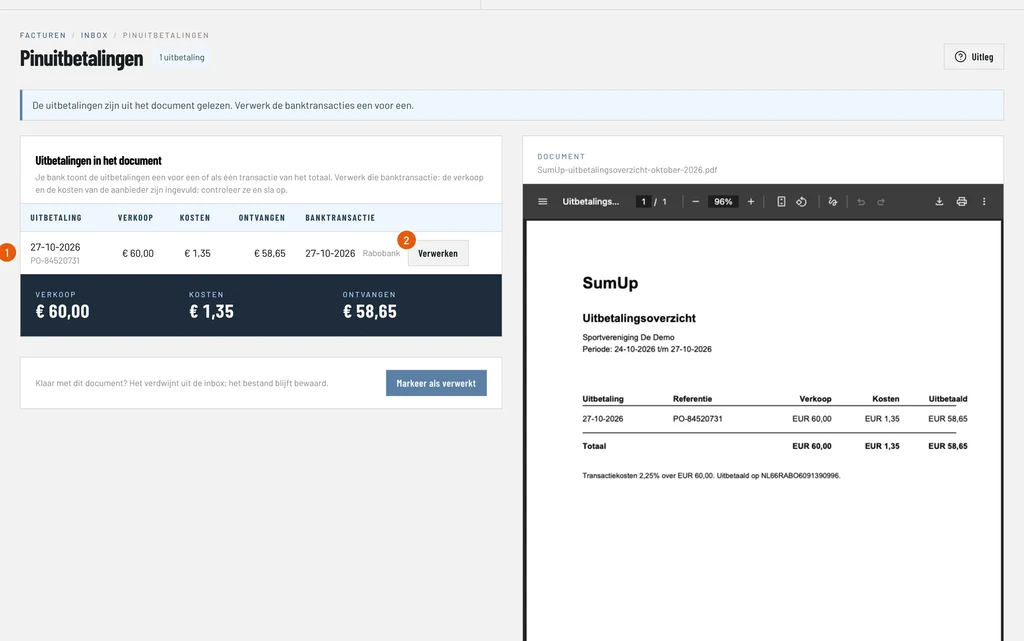
- If your card payment provider pays out, for example SumUp, you enter the costs it deducts. How that works is covered in the guide on booking card payments.
- Who may import and process bank statements is decided per role. Read more about roles and permissions.
- You find more about the possibilities under bank and cash.