
Step 1: open the member administration
In the main menu go to Members (Leden). The buttons to add a member are at the top right.
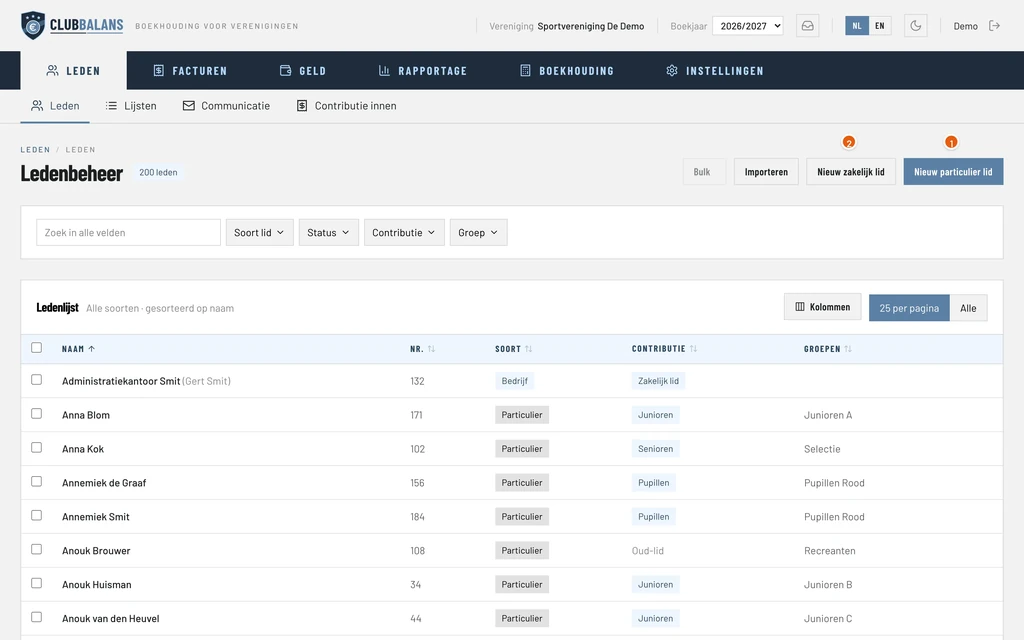
New private member: for a person, like Sanne. This is the button you use most often.
New company member: for a company or sponsor with a contact person. More about that below.
The screenshots show the Dutch interface; switch the language of ClubBalans with the NL and EN buttons at the top.
Step 2: fill in the details of the member
Click New private member. At the top of the form you fill in the basics.
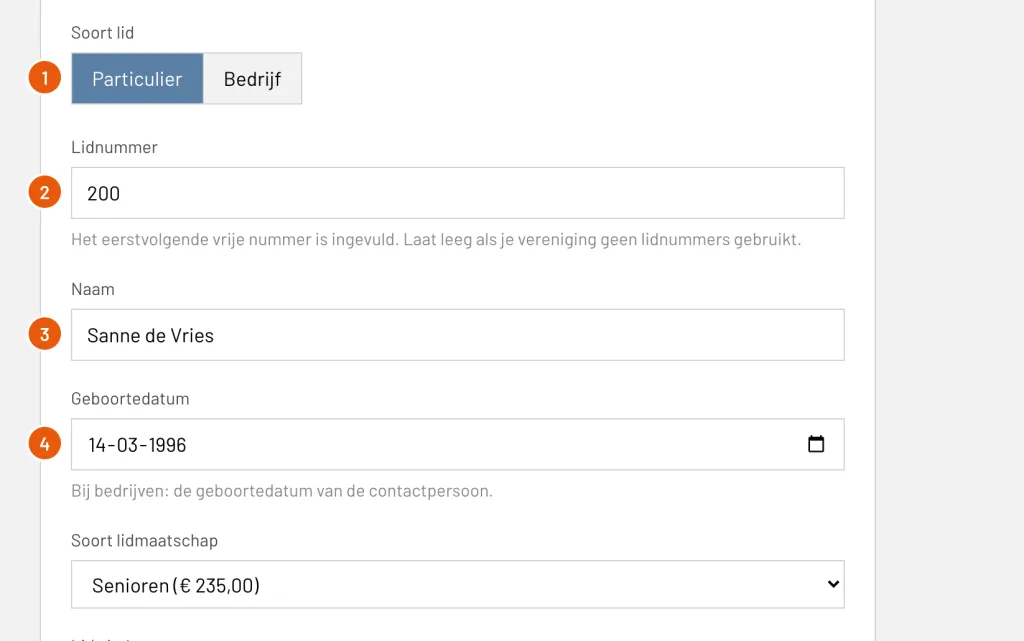
Kind of member (Soort lid): Private (Particulier) is already selected. Choose Company (Bedrijf) for a company member.
Membership number (Lidnummer): ClubBalans fills in the next free number, here 200. If your club does not use membership numbers, leave it empty.
Name (Naam): first and last name, here Sanne de Vries. This is the only required field.
Date of birth (Geboortedatum): optional, here 14-03-1996. You use it for the birthday list.
Step 3: choose the membership and fill in the contact details
Scroll down a little. Here you decide what the member pays and how you reach them.
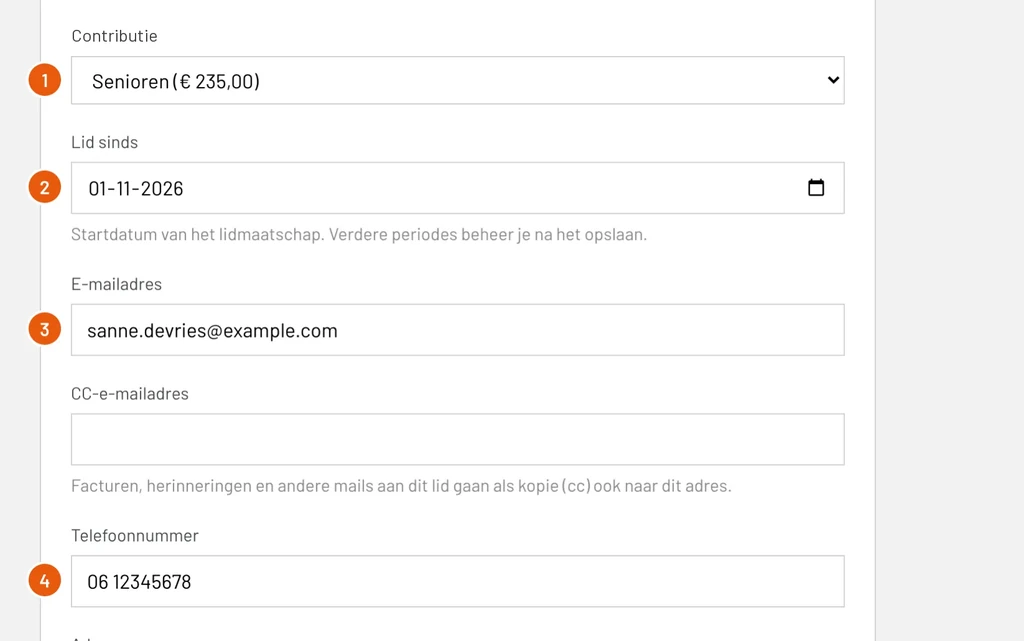
Membership fee (Contributie): sets the membership fee. The annual amount is shown, here Seniors (€ 235.00).
Member since (Lid sinds): the start date of the membership, here 01-11-2026. The membership, and the membership fee, run from that day.
Email address (E-mailadres): invoices and messages of the club go here, here sanne.devries@example.com. Fill in a CC email address as well, for example of a parent, and that address gets a copy.
Phone number (Telefoonnummer): optional, here 06 12345678.
Step 4: fill in the address and the groups, and save
At the bottom are the address and the groups the member belongs to.
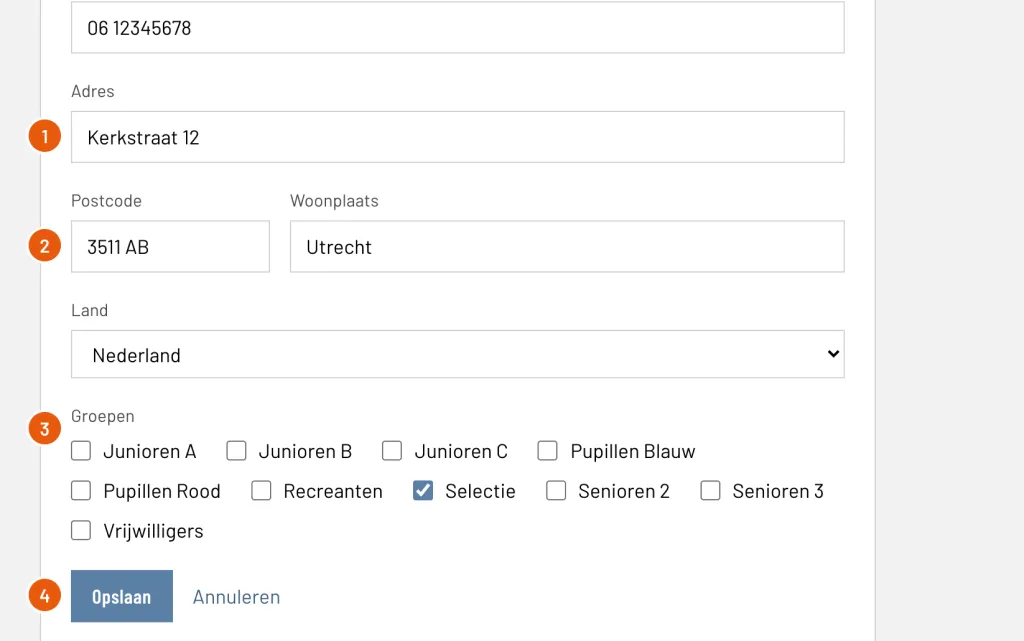
Address (Adres): street and house number, here Kerkstraat 12.
Postal code and place of residence (Postcode, Woonplaats): here 3511 AB in Utrecht. The country is the Netherlands by default.
Groups (Groepen): tick the teams or committees the member is in, here Selectie. They are optional and you can add one at any time.
Save (Opslaan): stores the member. You return to the member list with the message Lid toegevoegd (Member added).
A company as a member
You add sponsors and companies with New company member. The form is almost the same, with two differences: you fill in the name of the company, and the person you talk to is added as the contact person.
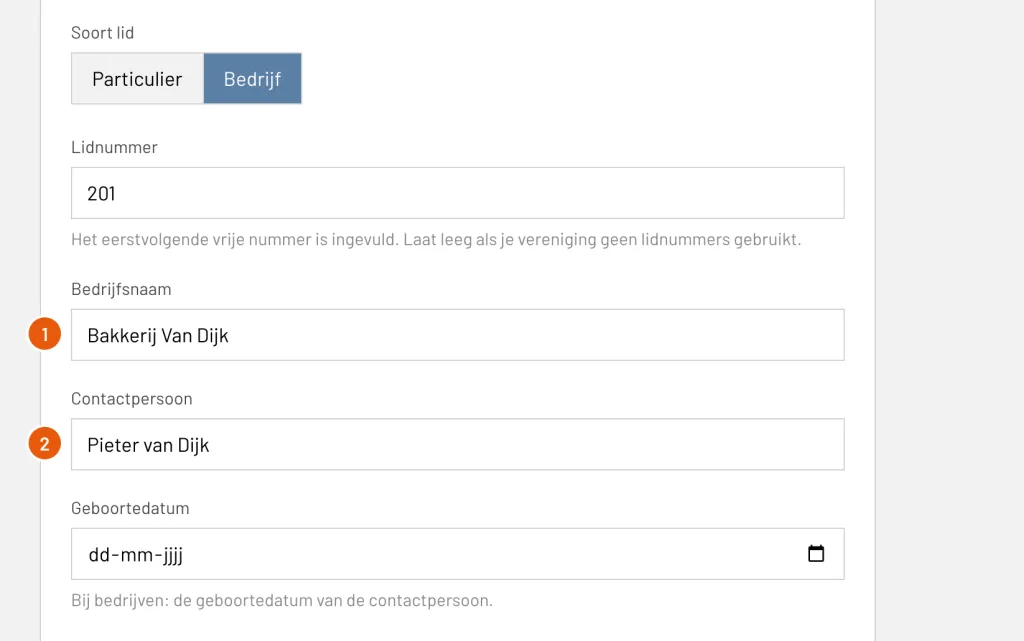
Company name (Bedrijfsnaam): required, here Bakkerij Van Dijk. This name appears on invoices, in lists and in the bookkeeping.
Contact person (Contactpersoon): the person at the company, here Pieter van Dijk. In the member list their name appears in brackets after the company.
Further down the form you can fill in an 8-digit chamber of commerce number and a separate email address for invoices, for example of the administration of the company.
Adding many members at once
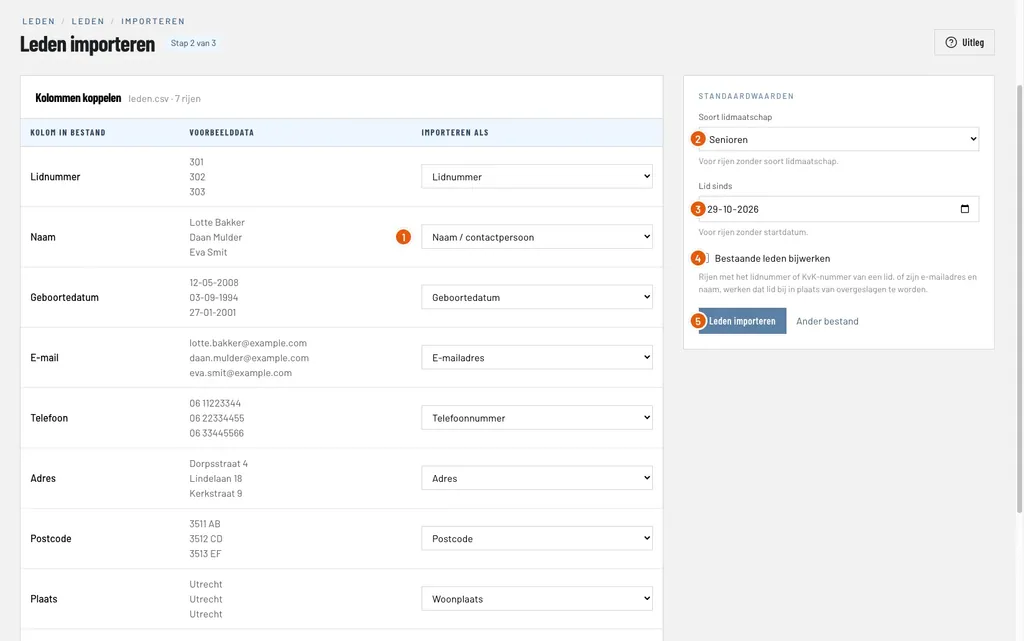
Do you have dozens or hundreds of members in a spreadsheet? Use the Import button on the member list: you link the columns of your file to the fields of ClubBalans and see what happens beforehand. If your club is new to ClubBalans we do it for you for free: read more about the free member import.
Good to know
- Your subscription decides how many members you can add. If you reach your maximum, ClubBalans tells you, and you buy extra members on the Subscription page.
- Deleting a member does not really remove them: the member disappears from the lists, but invoices and the change log stay correct. You can restore a deleted member.
- Who may create members is set per role. Read more about roles and permissions.
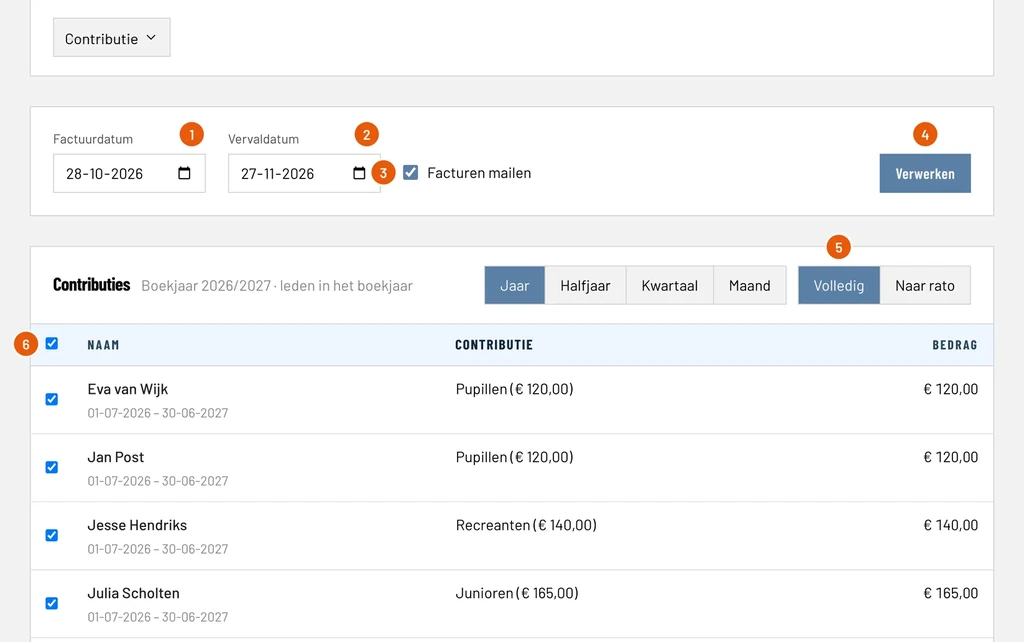
- Once the member exists, you collect the membership fee for all members at once.