Step 1: set up a kind of stock
A kind of stock tells ClubBalans what you buy and sell. You set it up once: go to Settings (Instellingen), choose Categories (Categorieën), open the Kinds of stock (Voorraadsoorten) tab and click New kind of stock. In this example we create one for the canteen: the club buys drinks and snacks for € 1.00 on average and sells them for € 2.00.
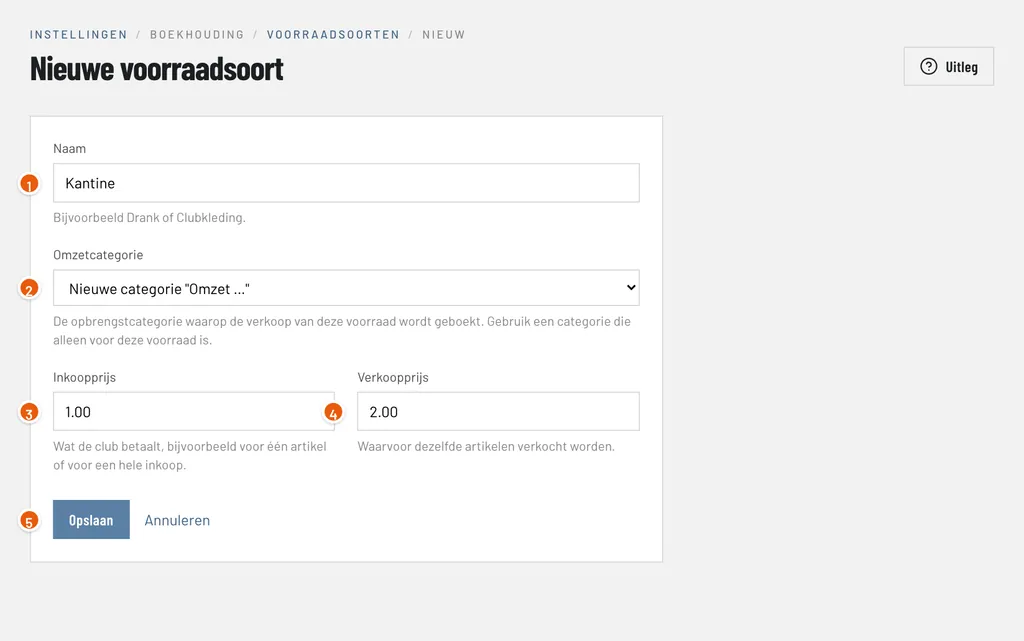
Name (Naam): what the stock consists of, here Kantine (canteen).
Revenue category (Omzetcategorie): leave it on New category. ClubBalans then creates the revenue category Omzet Kantine and the stock category Voorraad Kantine itself.
Purchase price (Inkoopprijs): what the club pays, here € 1.00 per item. An average over your range is fine.
Sales price (Verkoopprijs): what you sell the same items for, here € 2.00.
Save (Opslaan): stores the kind of stock.
How ClubBalans calculates the margin
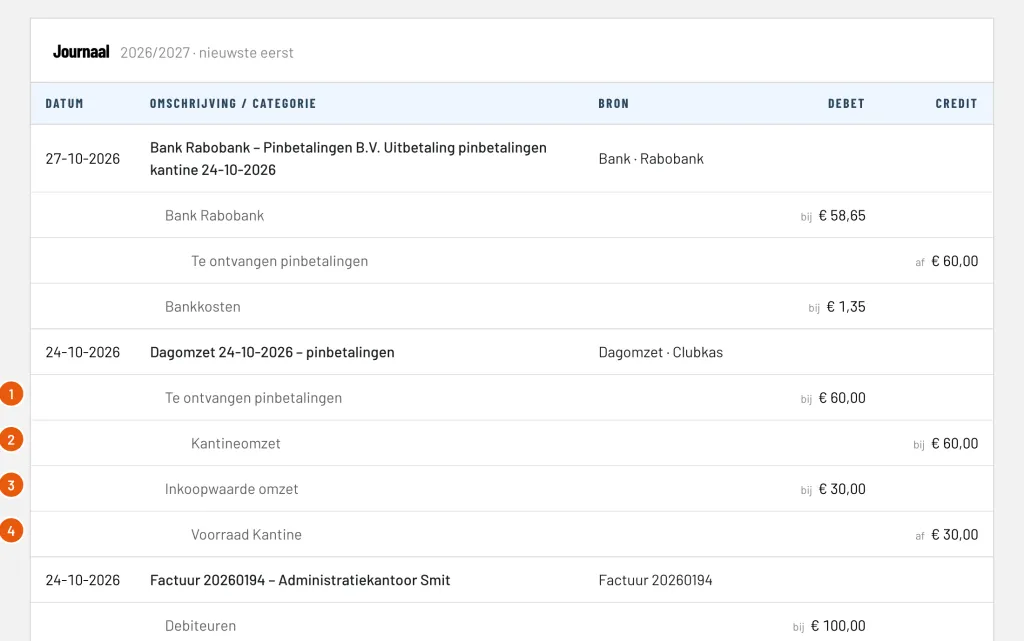
The purchase and sales price give the cost percentage: the purchase price divided by the sales price. For the canteen that is € 1.00 ÷ € 2.00 = 50%. With every sale on the revenue category of the kind of stock, ClubBalans automatically books the cost of sales too: that part of the revenue is taken off the stock as a cost (Inkoopwaarde omzet). What is left is the margin.
| Example | Canteen | Club clothing |
|---|---|---|
| Purchase price | € 1.00 | € 25.00 |
| Sales price | € 2.00 | € 40.00 |
| Cost price (purchase ÷ sales) | 50% | 62.50% |
| Margin (sales − purchase, as % of sales) | 50% | 37.50% |
| On € 100.00 revenue: cost of sales | € 50.00 | € 62.50 |
| On € 100.00 revenue: margin | € 50.00 | € 37.50 |
ClubBalans uses the prices of that moment for every sale. If you change the purchase or sales price later, that applies to new sales and what you booked earlier stays as it was. ClubBalans also uses the cost percentage for a count, to convert the counted sales value to purchase value (step 4).
Step 2: look at your kinds of stock
All the kinds of stock of the club are under Settings (Instellingen), Categories (Categorieën), Kinds of stock (Voorraadsoorten) tab.
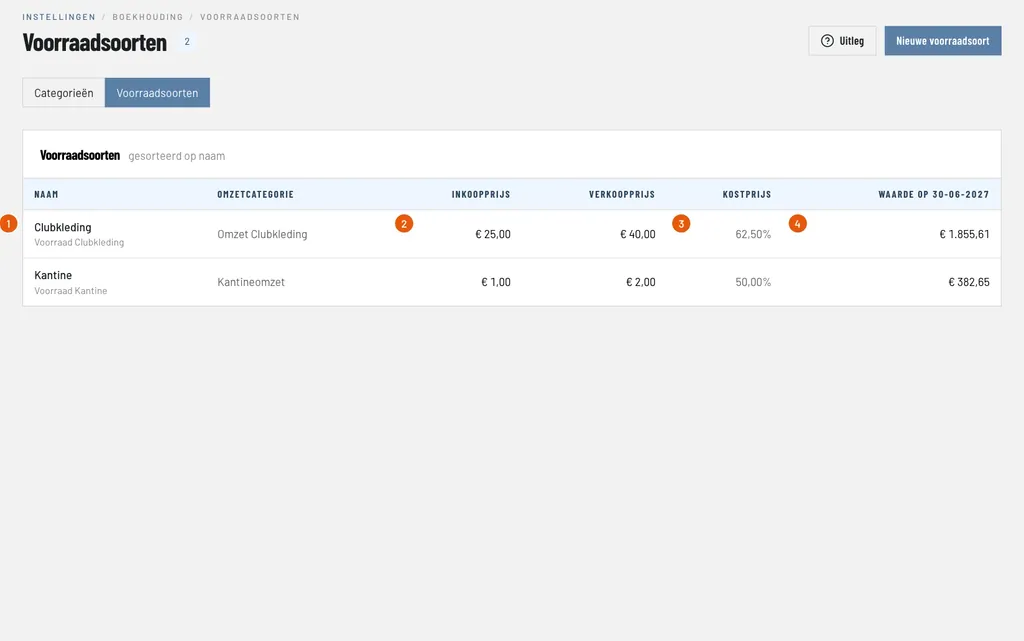
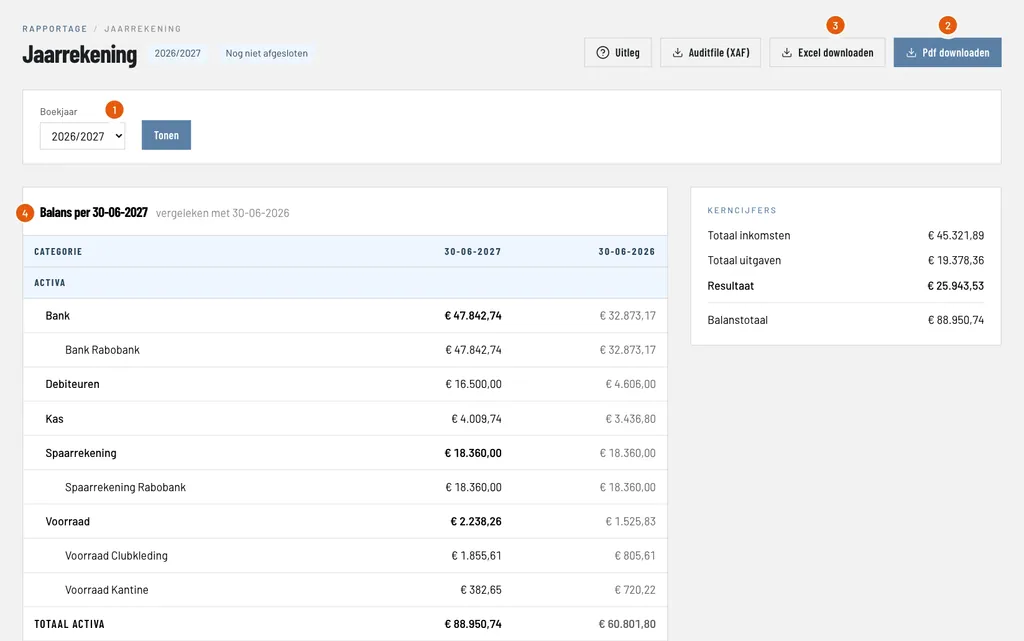
Kind of stock: what you sell, here Club clothing (Clubkleding). Below it is the stock category the purchases are booked on, Voorraad Clubkleding.
Revenue category (Omzetcategorie): what the sales are booked on, here Omzet Clubkleding. Every kind of stock has a revenue category of its own.
Cost price (Kostprijs): the purchase price as a percentage of the sales price, here 62.50%: a shirt that costs € 25.00 and is sold for € 40.00. ClubBalans uses this percentage to convert sales value to purchase value.
Value (Waarde): what the stock is worth in the books at purchase value, here € 1,855.61.
Step 3: buy and sell
You do not have to do anything special here, as long as you book in the right place.
- Purchases: book what you buy on the stock category, for example Voorraad Clubkleding, and not as a cost. You do that with a received invoice from the supplier, see booking incoming invoices, or with a payment on the bank statement or from the register. The stock on the balance sheet goes up.
- Sales: every sale on the revenue category of a kind of stock, for example through the day sales, an invoice or a payment from credit, lowers the stock automatically. The purchase value becomes a cost, at the prices of that moment.
That way the stock is always on the balance sheet, and you know the margin of every sale.
Step 4: count the stock
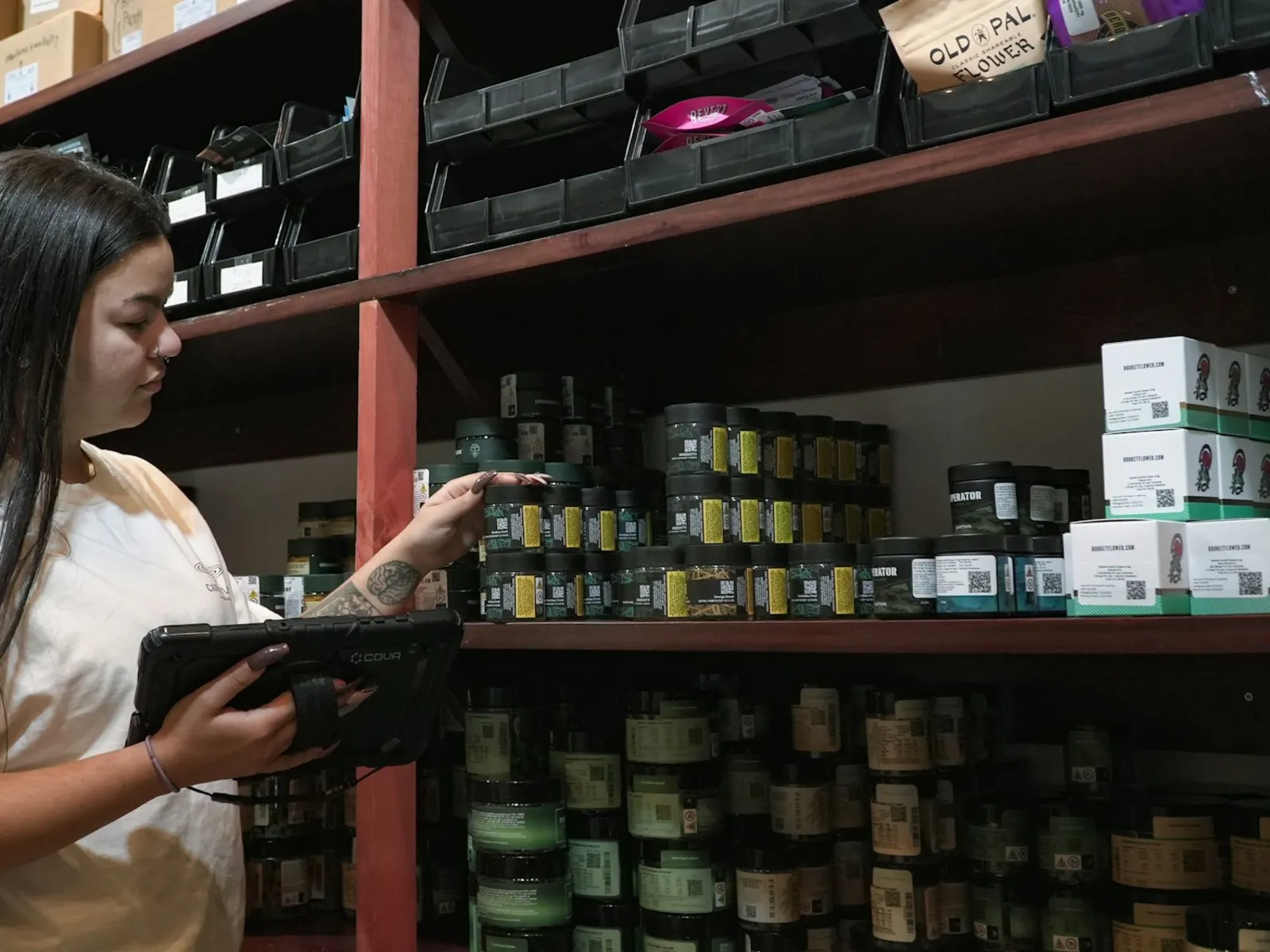
The books know what should be there. A count shows what is really there. Go to Bookkeeping, choose Stock (Voorraad) and click New stock count (Nieuwe voorraadtelling).
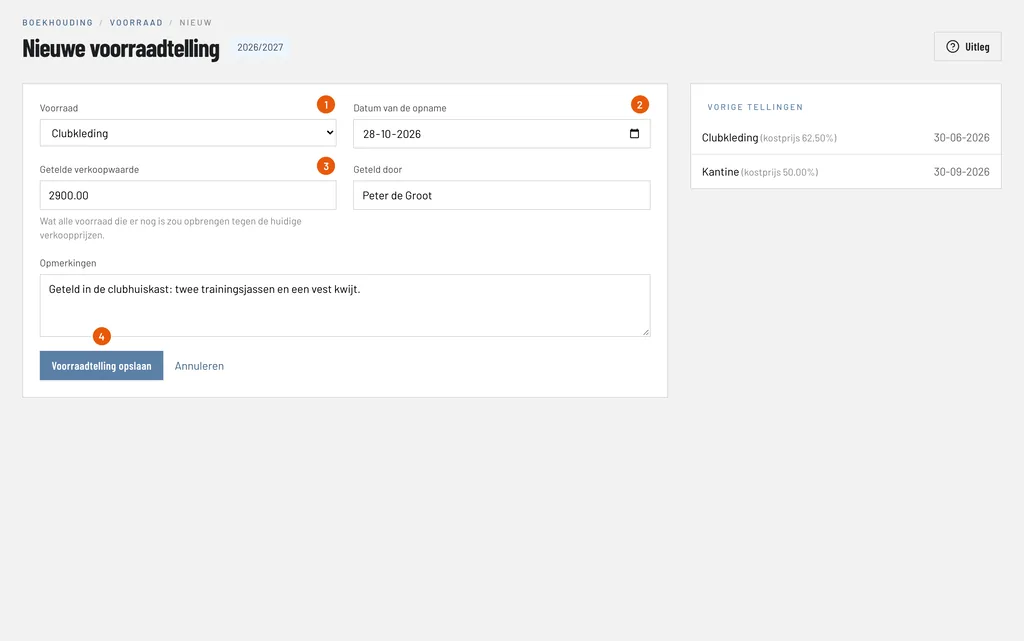
Stock (Voorraad): the kind of stock you count, here Club clothing.
Date of the count (Datum van de opname): the day of the count, here 28-10-2026. A count cannot be in the future.
Counted sales value (Getelde verkoopwaarde): what all the stock that is left would bring in at the current sales prices, here € 2,900.00. You do not have to convert anything.
Save stock count (Voorraadtelling opslaan): books the count. On the right you see the previous counts of every kind of stock.
Step 5: look at the result
After saving, ClubBalans reports the difference: here € -43.11. The count is at the top of the overview.
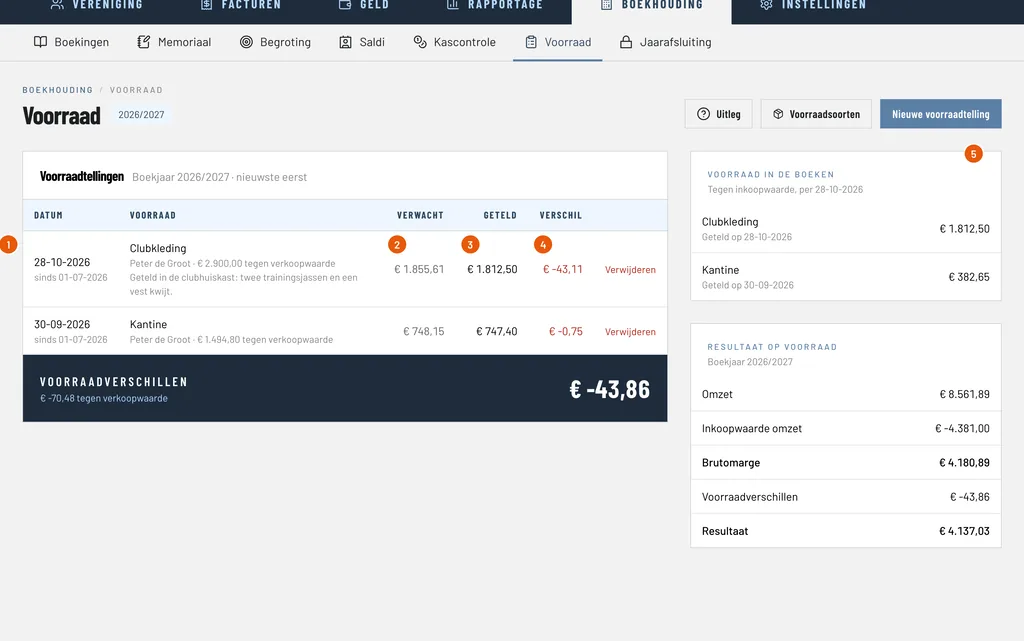
Count: the new count, here of Club clothing on 28-10-2026, with who counted and the remark.
Expected (Verwacht): what the books expect, at purchase value: € 1,855.61.
Counted (Geteld): what you counted, converted to purchase value: € 2,900.00 × 62.50% = € 1,812.50.
Difference (Verschil): what went missing, here € -43.11. ClubBalans books it as a stock difference and the stock in the books becomes equal to what you counted.
Stock in the books (Voorraad in de boeken): the stock per kind of stock after the last count, here € 1,812.50 for Club clothing.
Below the counts is the sum of the stock differences, and on the right the result on stock of the financial year: revenue, purchase value of the revenue, the gross margin and the stock differences.
Good to know
- Counts of a kind of stock follow each other: you can only delete the latest one, as long as the financial year is open.
- The Year end (Jaarafsluiting) page reports stock with a value but without a count in the last days of the year. See closing the financial year.
- Who may count the stock is decided per role. Read more about roles and permissions.
- You find more about the canteen under canteen, credit and stock.