
Step 1: add the loan
In the main menu go to Accounting and choose Loans. Click New loan at the top right. At the top you give the loan a name and enter the other party, with the IBAN that ClubBalans uses to recognise the installments later.
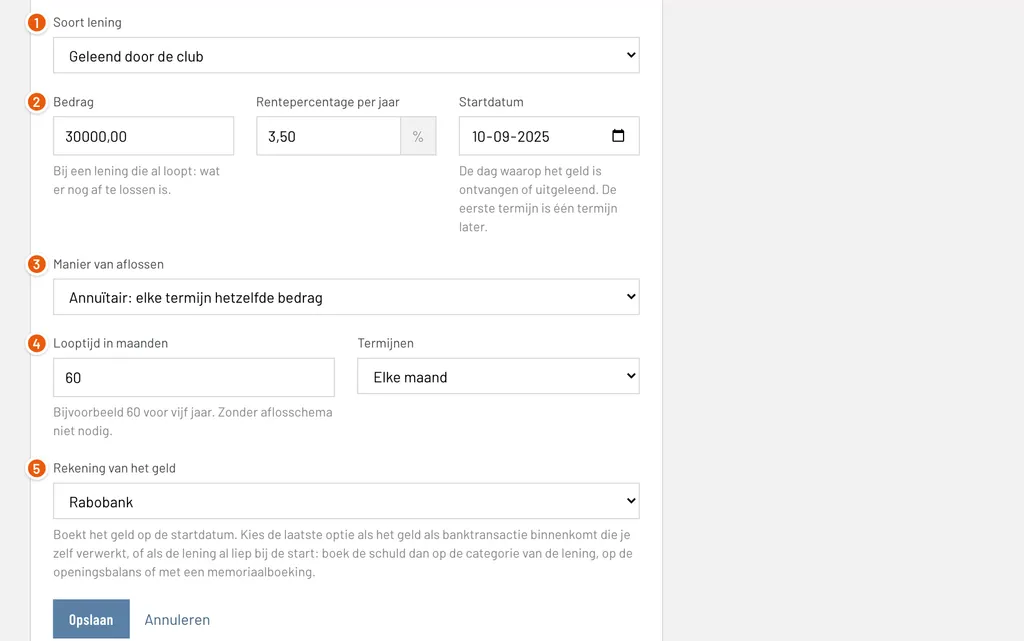
Kind of loan: Borrowed by the club when the club received money it has to pay back, Lent by the club when the club lent money to someone else.
Amount, interest and start date: the amount of the loan, the interest rate per year and the day the money arrives. Did the loan already run before you started with ClubBalans? Then enter the debt as it is now.
Way of repaying: annuity (the same total every installment, like a mortgage), linear (the same repayment every installment, so falling interest), interest only (everything at the end) or free (no schedule).
Term and installments: the number of months and how often you pay: every month, quarter, half year or year. The term has to be a whole number of installments.
Account of the money: the bank account or cash register the money arrived on. ClubBalans books it on the start date. Does the money arrive as a bank transaction you process yourself? Then choose Not booked.
Click Save. The loan gets its own balance category under Leningen, so the debt is on the balance sheet, and a category for the interest. By default that is Betaalde rente, or Ontvangen rente for money lent out. On the page of the loan you can choose another interest category.
Step 2: look at the schedule
Below the form of the loan is the repayment schedule: when each installment is due and how much of it is repayment and interest. The interest is the yearly rate for the months of one installment, calculated over the debt that is left.
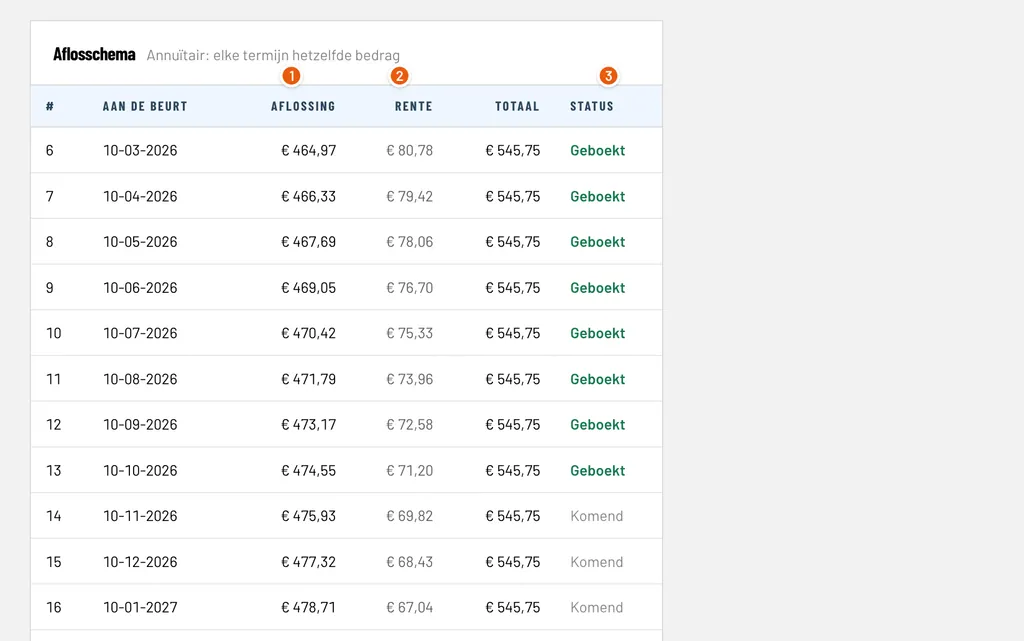
Repayment: the part of the installment that lowers the debt. With an annuity loan this part grows every installment, because the interest falls.
Interest: the part of the installment for the interest, over the debt at that moment.
Status: Booked when the installment has been processed, Upcoming when it is still to come and a red Not booked yet when the due date has passed and the installment is not processed.
You cannot change the terms of a loan afterwards. If you made a mistake, delete the loan while only its first booking exists and enter it again.
Step 3: process an installment
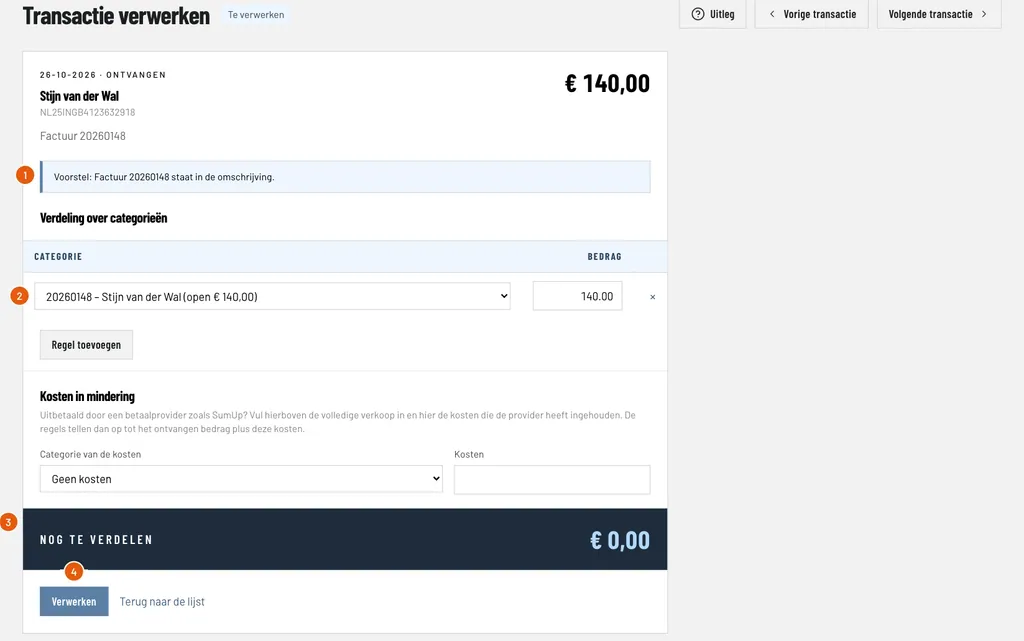
Import the bank statement and open the bank transaction of the installment. If the amount is exactly the next installment and the payment is from the lender (the IBAN or the name matches) or within ten days of the due date, ClubBalans suggests splitting the installment into repayment and interest.
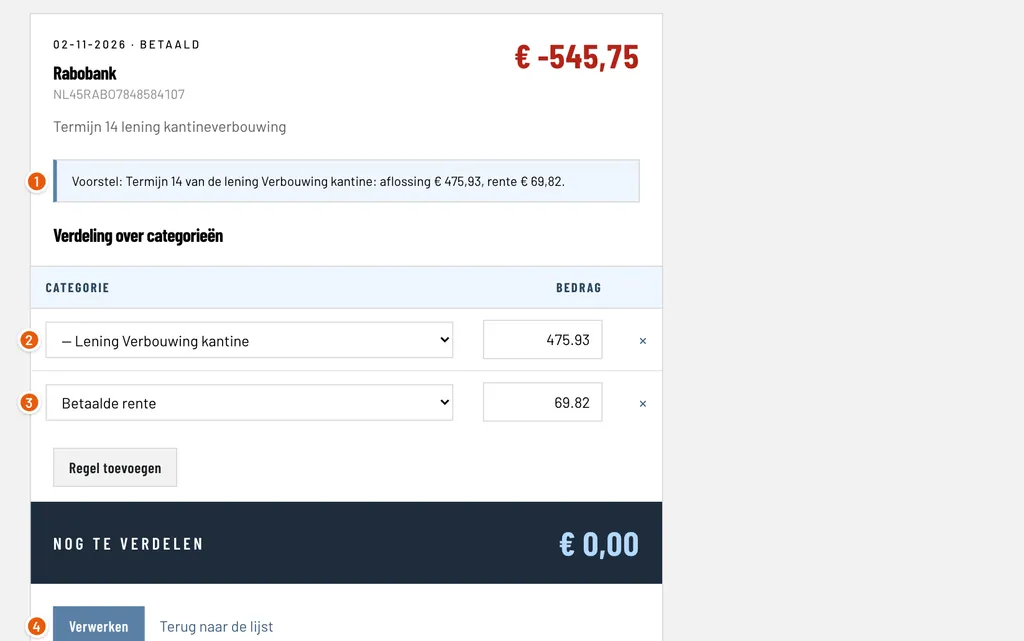
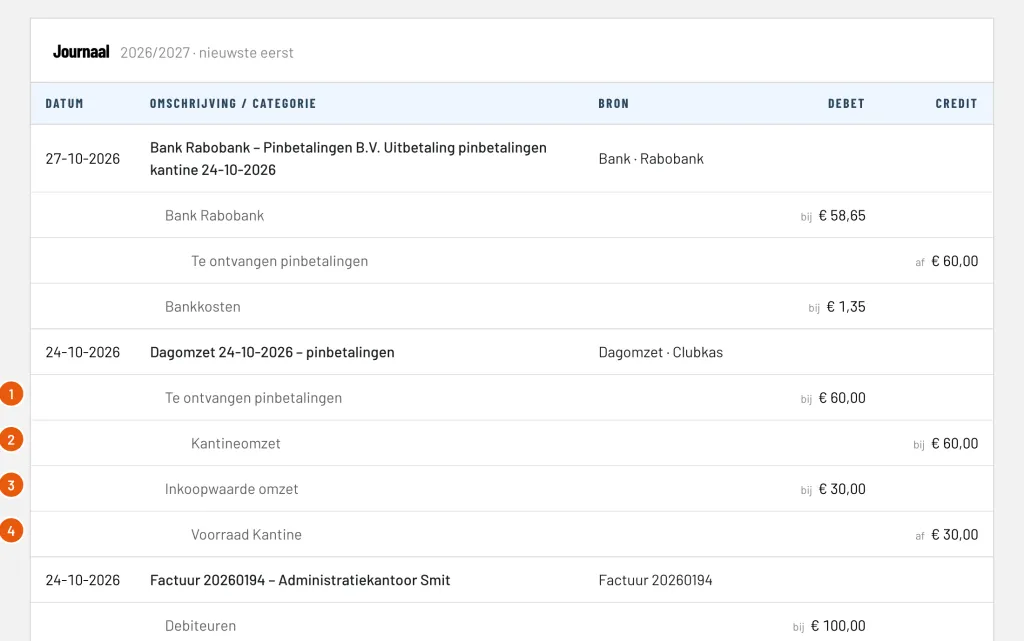
Suggestion: ClubBalans recognises the installment and says which installment of which loan it is, with the repayment and the interest.
Repayment: the first line books the repayment on the category of the loan, so the debt falls.
Interest: the second line books the interest on the interest category, a cost of the year.
Process: books the transaction and moves on to the next one. The installment shows as Booked in the schedule afterwards.
If the amount of the bank differs a few cents from the schedule, you get no suggestion. You then split the transaction yourself with the same two lines. Repaying extra works the same way: book the amount on the category of the loan. You can never repay more than what is left.
Step 4: keep the overview
Under Loans you see all loans of the club with what is left.
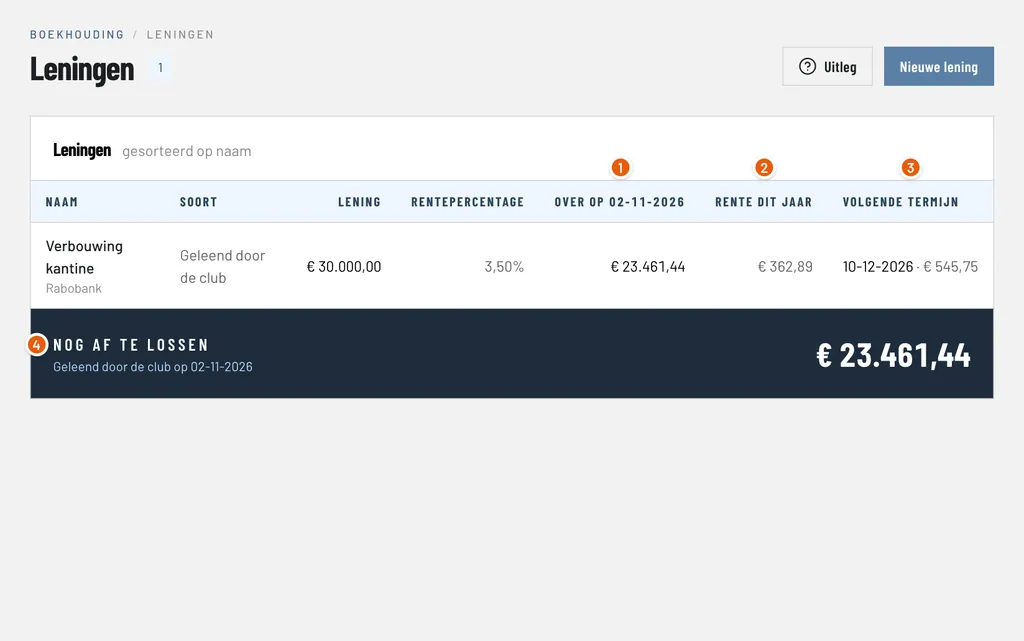
Left on: the debt that is left on the last day of the financial year, or today when the year is still running.
Interest this year: the interest booked in this financial year.
Next installment: the date and the amount of the next installment that is not booked yet. When the date has passed it turns red and the overview says at the top that there are installments to process.
Still to repay: the total debt of all loans the club received. If the club also lent out money, what is still to be received is shown next to it.
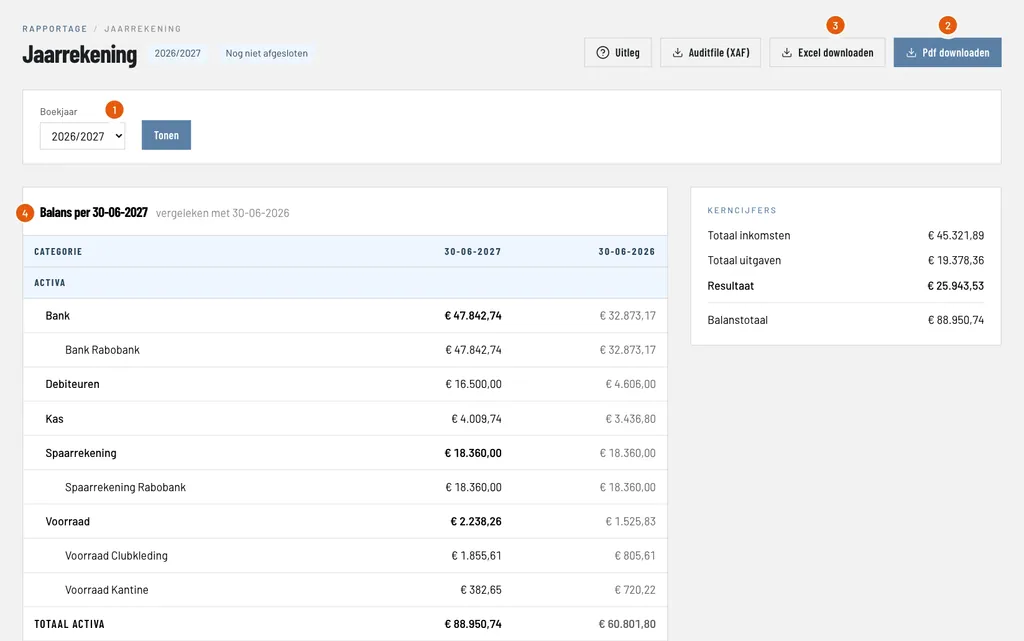
The debt is on the balance sheet under Leningen and the interest in the profit and loss account. When you close the financial year, ClubBalans warns about installments of that year that are not booked yet, and about interest that has built up since the last installment and is not in the figures yet. You book that interest yourself with a manual entry.
Good to know
- The debt of a loan can never drop below zero, not with a manual entry or a cash booking either.
- A loan with only one booking, the receipt of the money, can be deleted. After that the bookings stay.
- Who may manage loans is set per role, and every change goes into the change log.
- You find more about booking in bookkeeping and bank and cash.