Step 1: check the annual accounts
Go to Reports (Rapportage) and choose Annual accounts (Jaarrekening). At the top you choose the financial year and click Show (Tonen). The annual accounts consist of the balance sheet, the profit and loss with the budget and the year before, and the key figures.
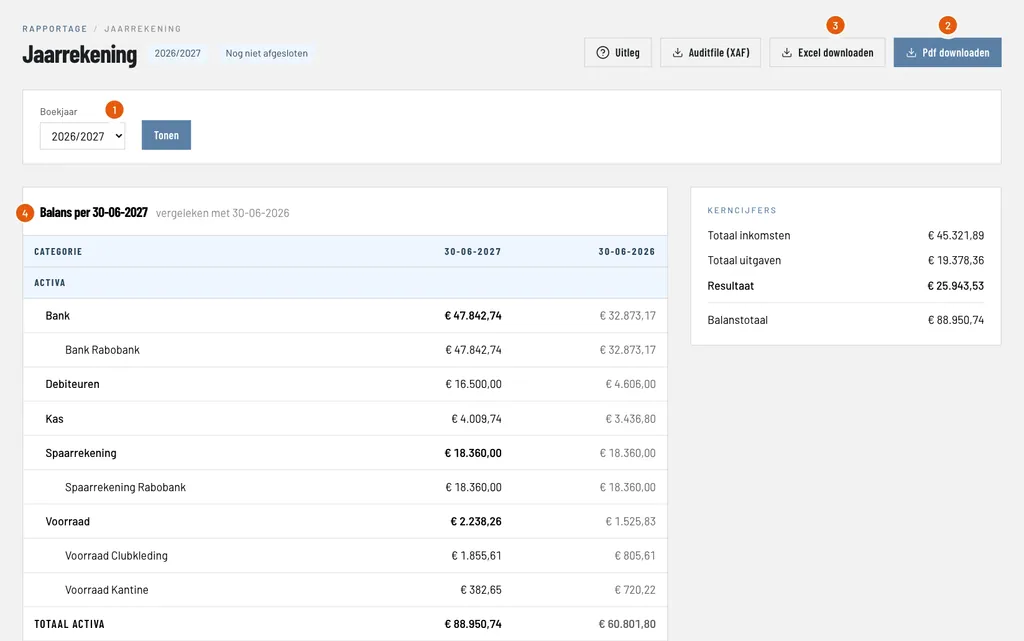
Financial year (Boekjaar): the year you are looking at. Next to the title it says whether it has been closed, here Not closed yet (Nog niet afgesloten).
Download PDF (Pdf downloaden): the annual accounts as a PDF, to show the audit committee and at the general meeting.
Auditfile (XAF): the whole bookkeeping as an XML file for the tax authority or your accountant. It is a file that other accounting programs can read.
Balance sheet (Balans): what the club owns and owes on the last day of the year, next to the year before. On the right are the key figures: total income, expenses and the result.
Below the balance sheet is the profit and loss, with per category the actual amount, the budget and the difference. Compare it with what you expected and, if something is off, find out where it comes from: click a category to see its bookings.
Step 2: download the documents
Click Download PDF for the annual accounts and Auditfile (XAF) for the XML file. That gives you everything for the audit committee and for your accountant. The Auditfile holds the whole bookkeeping of the year: the opening balance, all bookings with their invoices and the result. A year with bookings that are not in balance does not get one.
If you want all the documents at once, under Bookkeeping and Cash audit (Kascontrole) is the Audit package (Kascommissiepakket): a ZIP file with the annual accounts, all bookings, the invoices, the cash book and the cash counts of the year. See reports and audit.
Step 3: close the financial year
Once the annual accounts are approved, you close the year. Go to Bookkeeping (Boekhouding) and choose Year end (Jaarafsluiting).
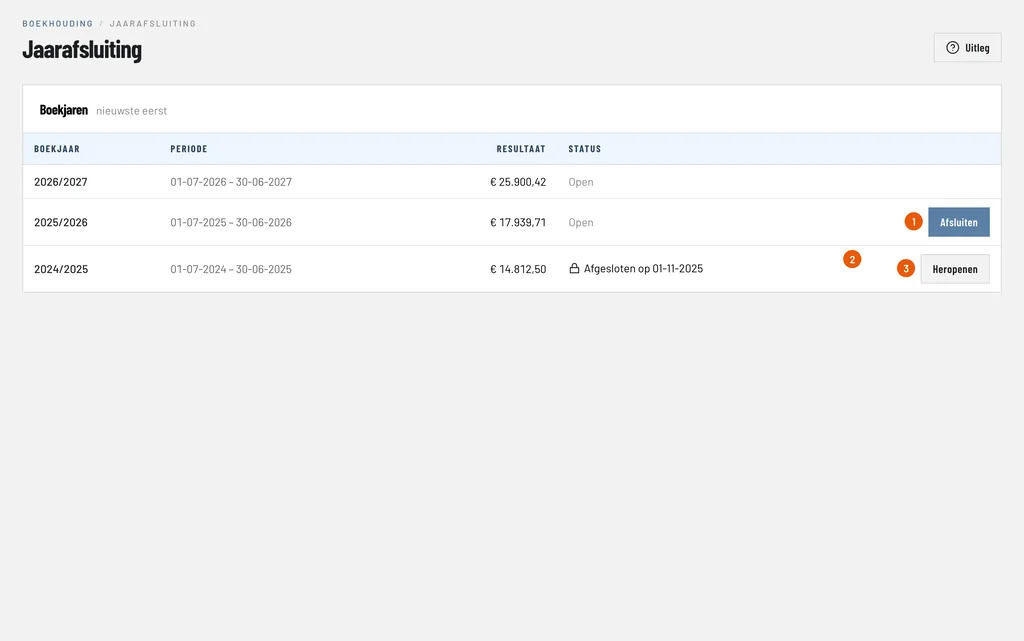
Close (Afsluiten): closes the financial year, here 2025/2026 with a result of € 17,939.71. ClubBalans asks for confirmation and then books the result on equity. The button is only there for the oldest year that is still open. As long as that year is not over, it says here from which date it can be done.
Closed (Afgesloten): a closed year shows the day it was closed, here 01-11-2025. Nothing can be booked, changed or deleted in that year any more.
Reopen (Heropenen): removes the closing entry so you can book again. Only an administrator can do that, and the most recent closed year first.
You close financial years in order, the oldest first. If there is stock with a value on the balance sheet whose last count is not in the last days of the year, the page warns about it, with a link to the new stock count. See keeping track of stock.
Step 4: start the new financial year
A new financial year does not start by itself. Go to Settings (Instellingen), choose Bookkeeping and then Financial years (Boekjaren).
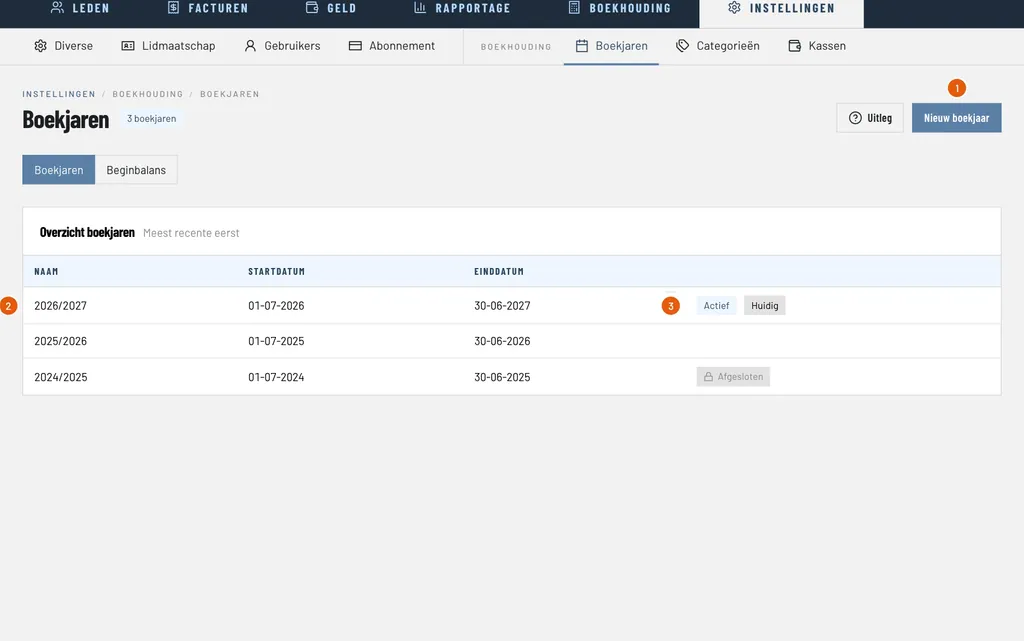
New financial year (Nieuw boekjaar): creates the next year. You only choose the name: the year follows the last one without a gap and lasts twelve months.
Name (Naam): the financial year, here 2026/2027.
Active (Actief): the active year, the one you book in and see the reports of. You choose the year at the top right of the screen.
The new year takes over the balances of the previous one, without an opening balance. So you can carry on right away with membership fees, day sales and bank statements.
Good to know
- A closed year can only be viewed: you can see the bookings but not change them. The buttons to book are switched off.
- A financial year without bookings can be deleted, but only the last one.
- Who may close and reopen the financial year is decided per role. Read more about roles and permissions.
- You find more about the reports under reports and audit.