ClubBalans
4 steps

Letting Scan and recognize read and book your incoming invoices

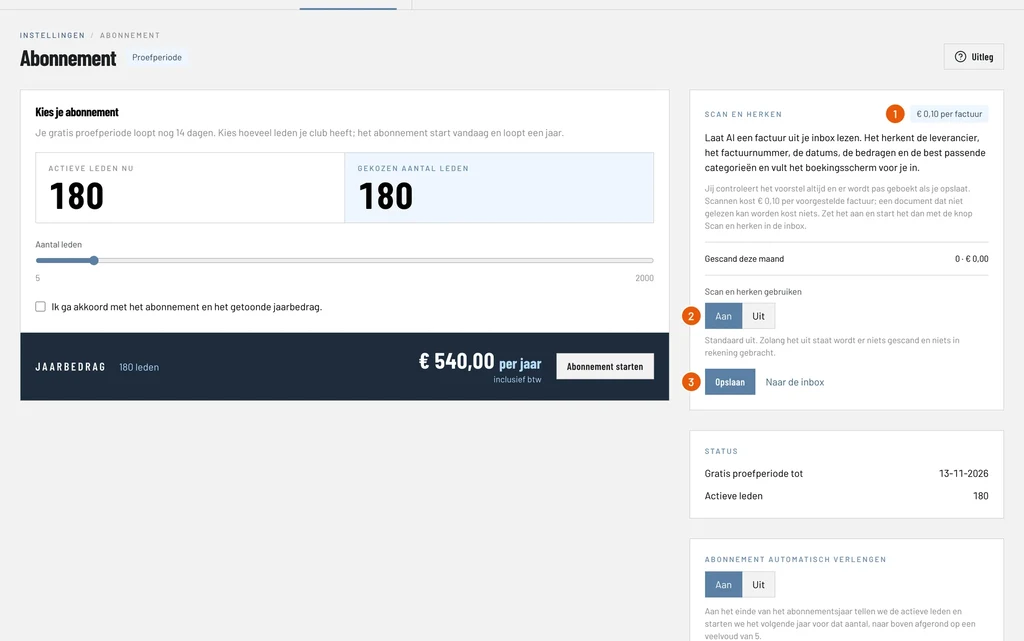
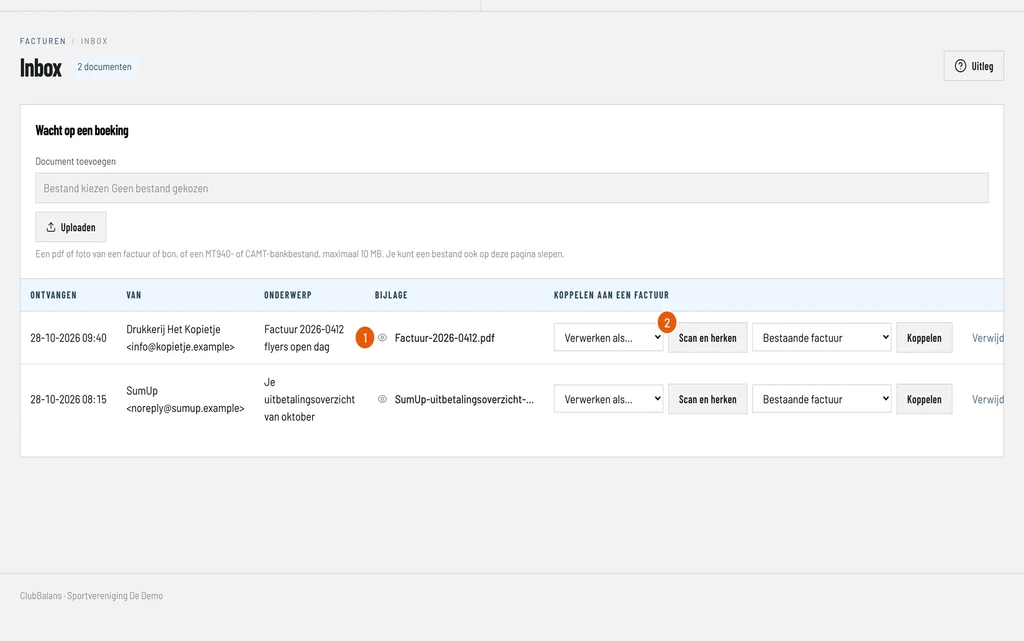
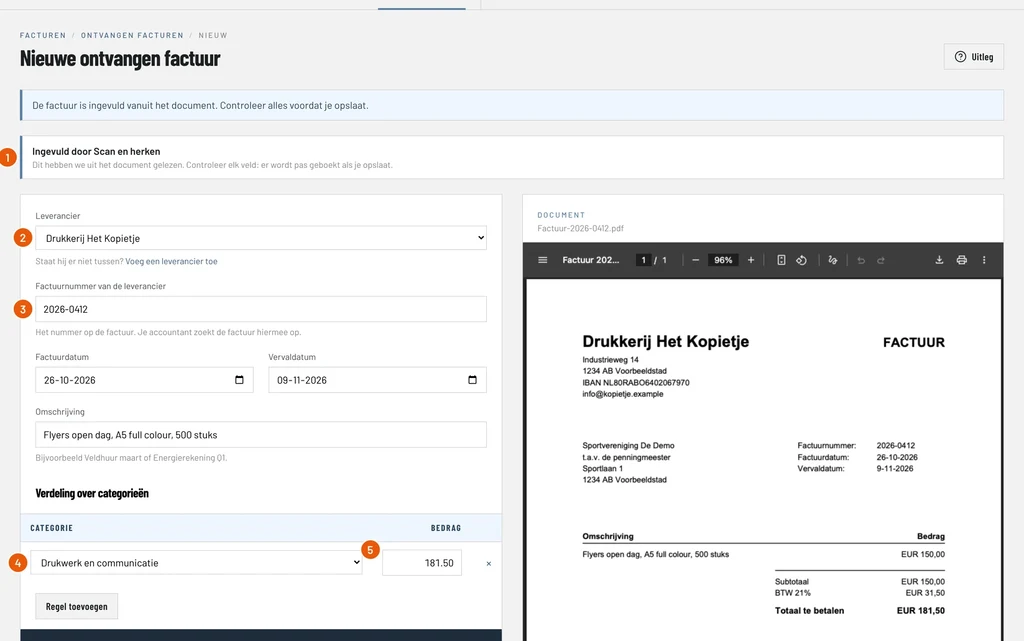
Typing over an invoice is dull work: supplier, number, two dates, an amount and a category. With Scan and recognize, AI reads the invoice in your inbox and fills in the booking screen for you. You check the suggestion and save. Every step shows a screen from ClubBalans with example data.

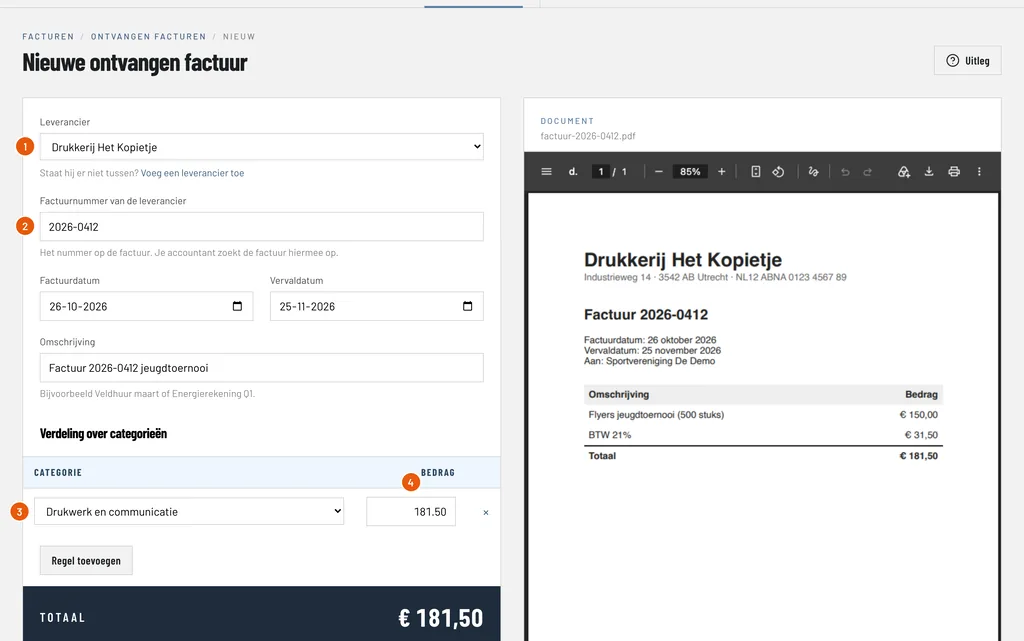
Our example: Drukkerij Het Kopietje emails Sportvereniging De Demo invoice 2026-0412 for flyers of €181.50. How the invoice reaches the inbox is explained in the guide on booking incoming invoices.

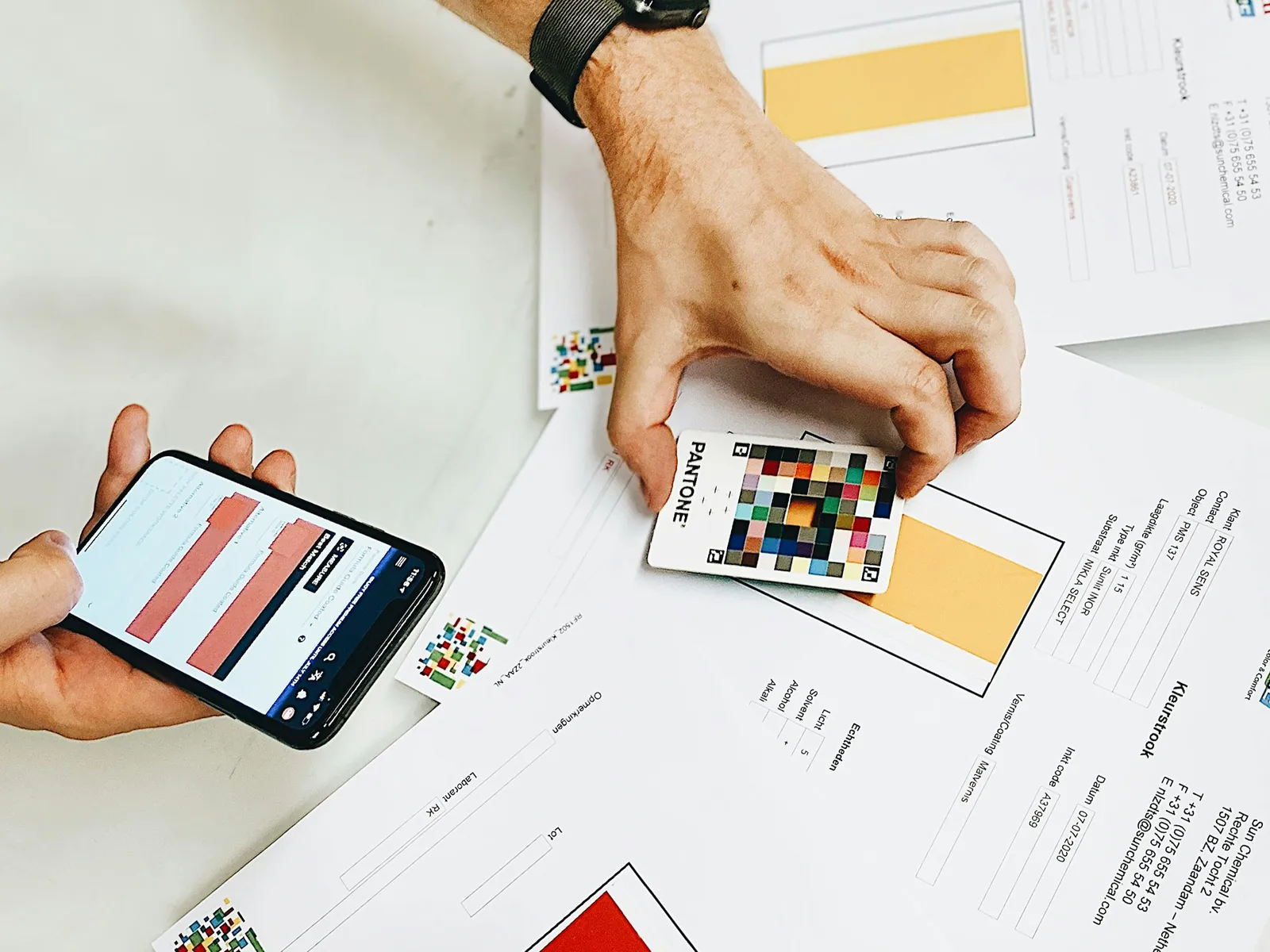
A phone held over printed documents on a table
Questions

Frequently asked questions

What does Scan and recognize cost?

It costs €0.10 per suggested invoice, including VAT. A document that cannot be read costs nothing. On the Subscription page you see how many documents you had scanned this month. As long as you do not switch Scan and recognize on, nothing is scanned and nothing is charged.

Is the invoice booked right away?

No. Scan and recognize only fills in the booking screen. You check every field and nothing is booked until you click Save.

What does Scan and recognize read from the invoice?

The supplier, the invoice number, the invoice date and the due date, a description, the amount and the category the costs fit best. If the invoice says the amount was already deducted automatically, ClubBalans takes that into account.

What if the supplier does not exist yet?

Then you see the name of the supplier on the document above the form, with a link to add them. The details on the invoice, such as the address and the IBAN, are already filled in. Afterwards you return to the same booking screen.

Can I have a document scanned twice?

No. A document is scanned once, so you pay for it once. If a field is not right, you change it yourself in the form.

Does it also work with a photo of a receipt?

Yes, with any PDF or photo in the inbox. A photo does have to be readable. If reading fails, you get a message and book the invoice yourself.

Can I try Scan and recognize in the demo club?

No, the demo club cannot scan documents. In your own trial you can switch it on.

More about this

4 steps

Creating members

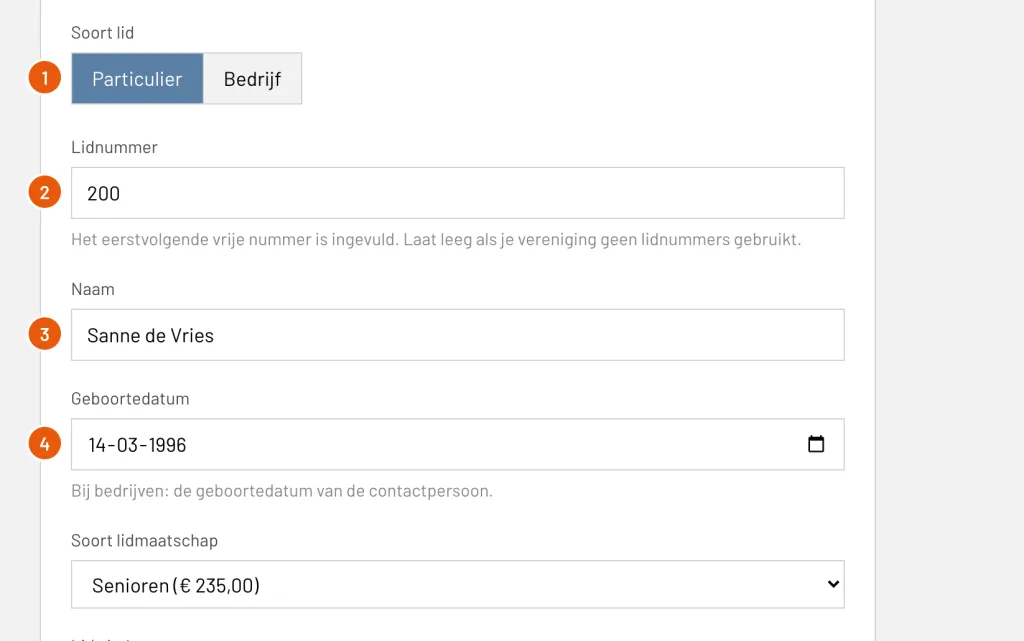
The first fields of the form for a new member: kind of member, membership number, name and date of birth

Add a private or company member with their membership, contact details and groups, and check the result. With example data and a screenshot of every step.

Read the guide
4 steps

Importing members

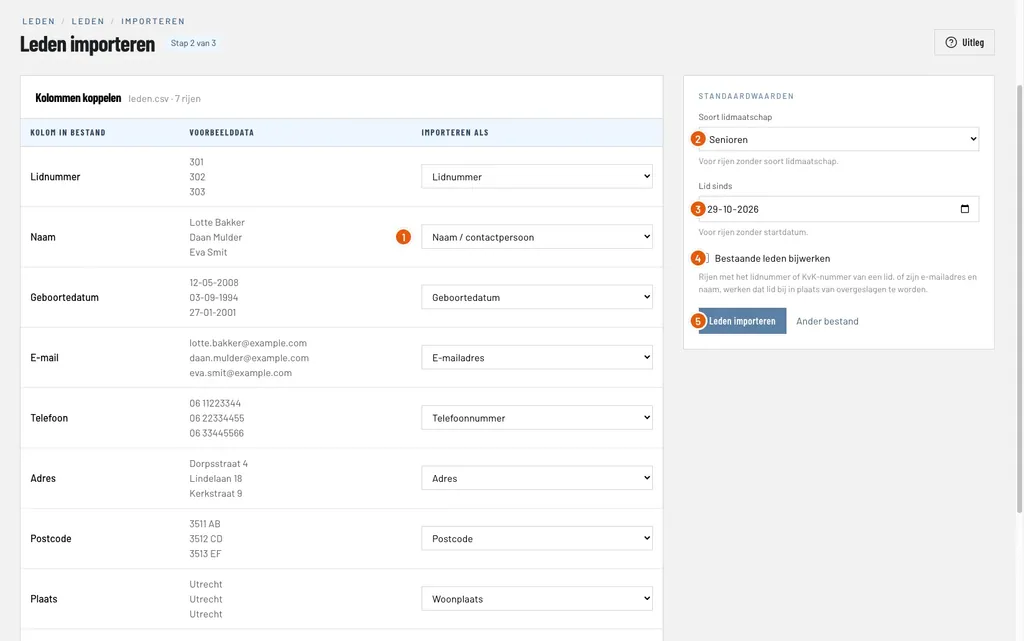
The second step of the member import, with the columns of the file linked to member fields and the default values

Import the members of your club from an Excel or CSV file, link the columns to the member fields, and check what was added and what was skipped. With example data and a screenshot of every step.

Read the guide
6 steps

Setting up the member area

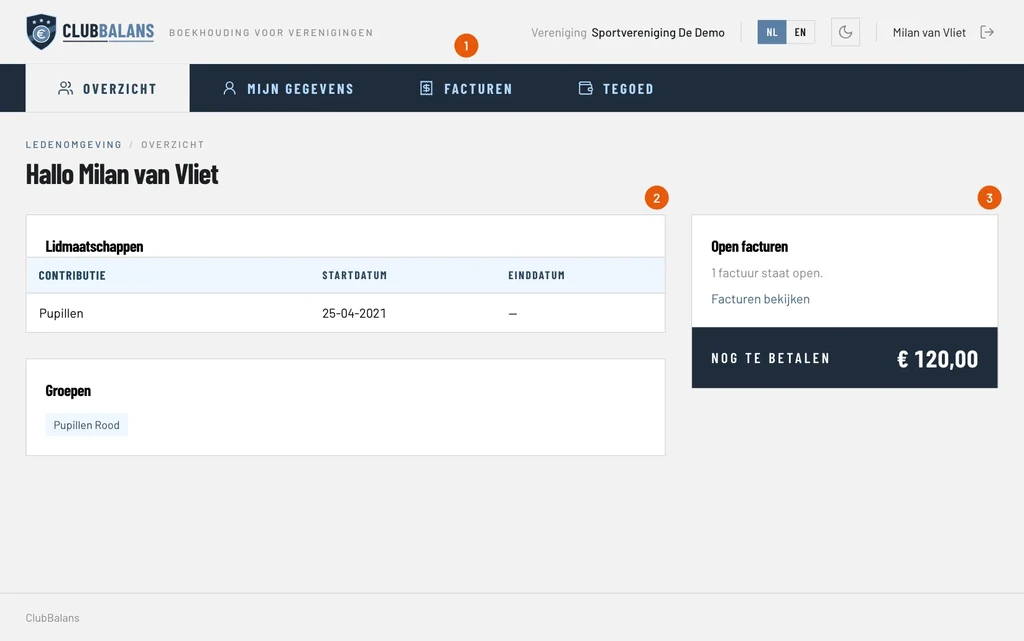
The overview of the member area with the memberships, the groups and the open invoices

Switch on the member area, let a member log in with a link in their email and see what members can look up and change themselves. With example data and a screenshot of every step.

Read the guide
5 steps

Processing card payments manually

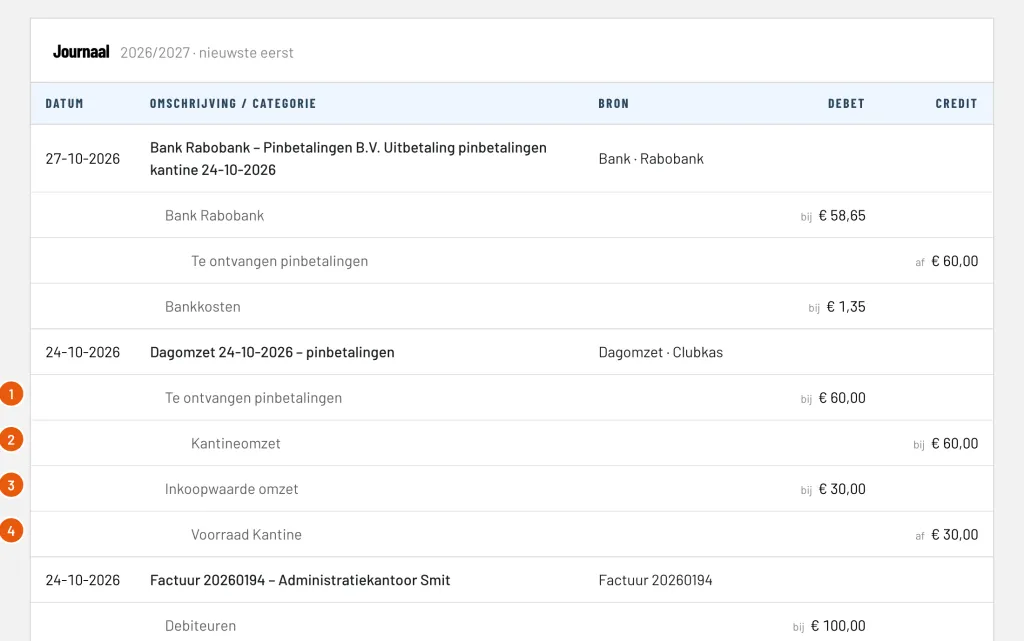
The booking of the card payments: the sales on the canteen revenue and the cost of sales on the stock

Enter the card payments of the canteen as day sales, process the payout of the payment provider with its costs and check the result. With example data and a screenshot of every step.

Read the guide
4 steps

Collecting membership fees

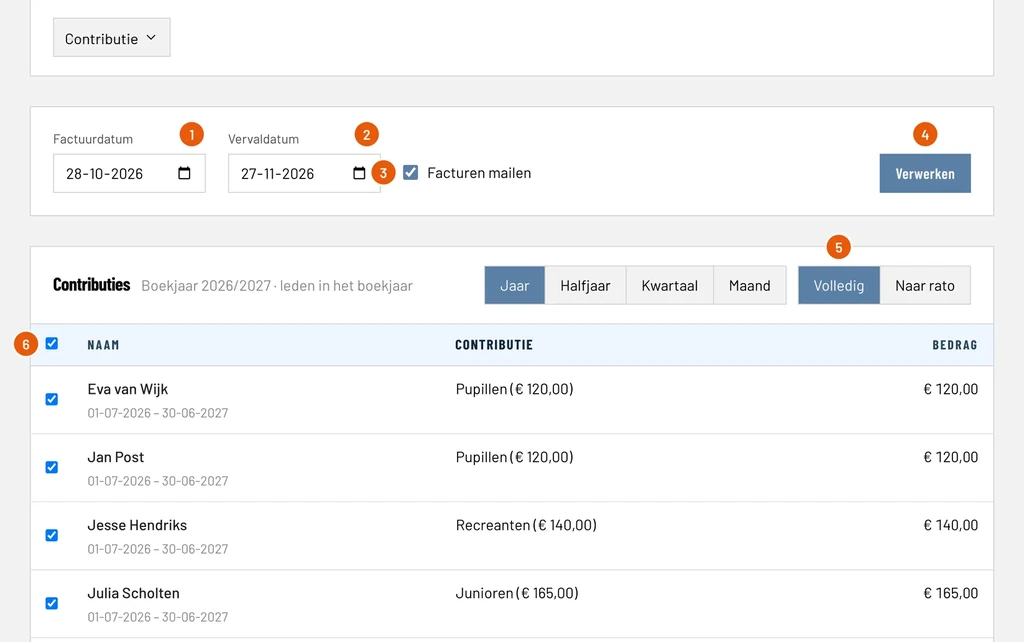
The membership fee collection with the dates, the option to email the invoices and the members to invoice

Create the membership fee invoices of all members in one run, email them and send reminders for the invoices that stay unpaid. With example data and a screenshot of every step.

Read the guide
4 steps

Processing bank statements

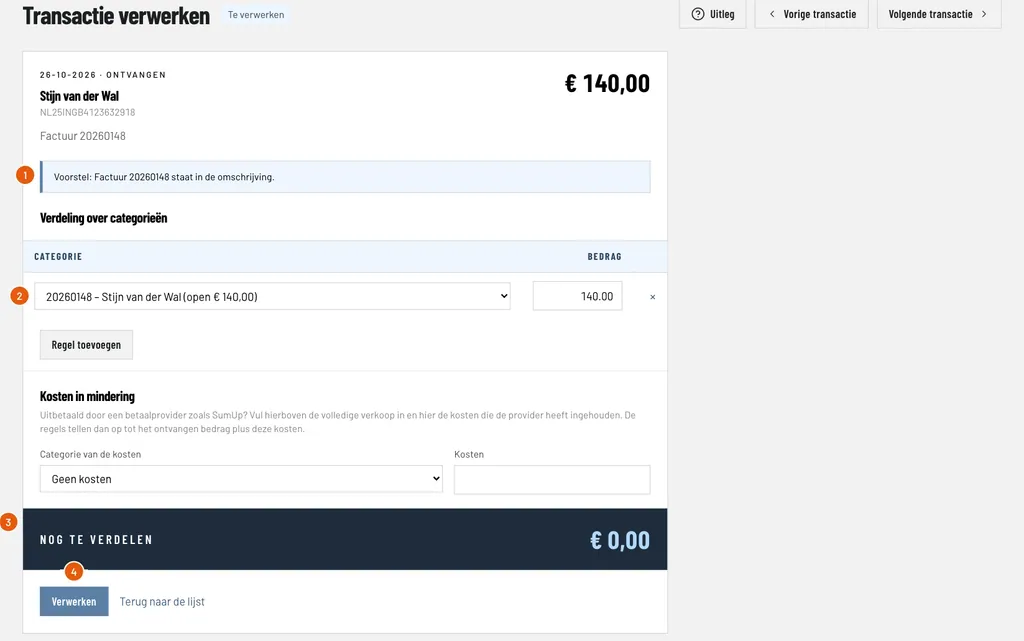
Processing a payment of a member: the suggestion, the invoice it pays and the amount still to distribute

Import a bank statement, let ClubBalans suggest how every payment is booked and process payments of members and suppliers. With example data and a screenshot of every step.

Read the guide
4 steps

Booking incoming invoices

Booking an incoming invoice with the invoice from the inbox next to the form

Receive supplier invoices in the invoice inbox, book them with the invoice next to the form and pay them. With example data and a screenshot of every step.

Read the guide
4 steps

Booking day sales

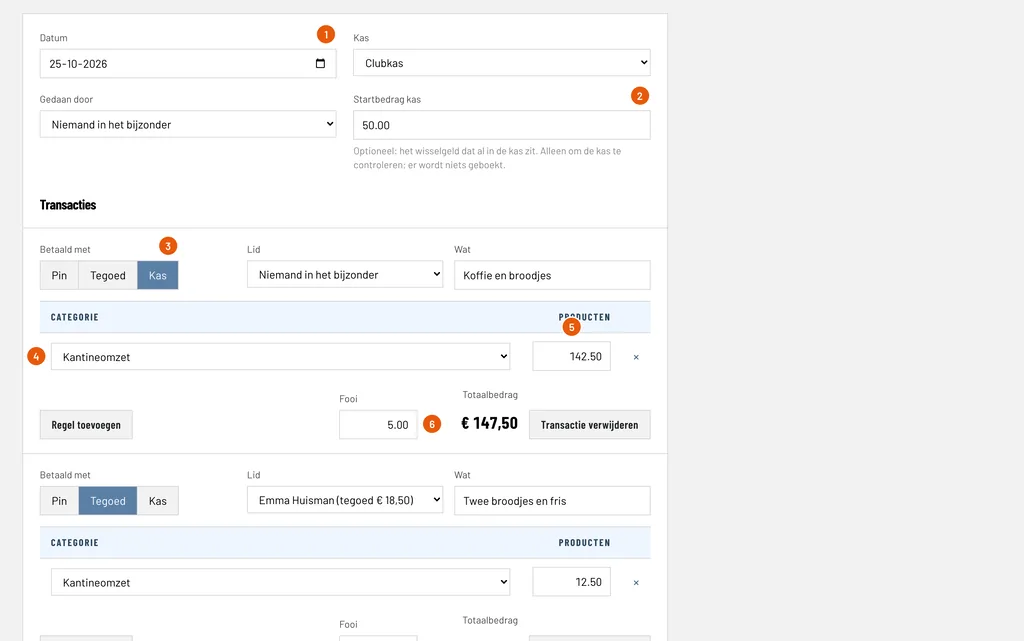
The day sales form with the date, the starting cash and the first transaction paid in cash, with a tip

Enter the sales of a day in one go, paid in cash, from credit or by card, with tips and a cash count. With example data and a screenshot of every step.

Read the guide
4 steps

Credit of members

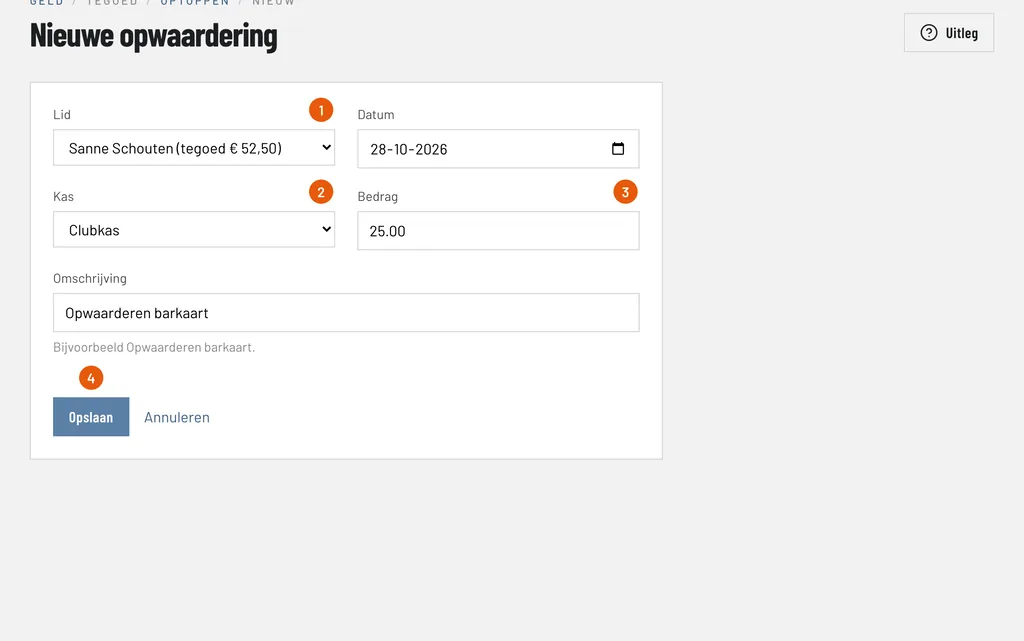
The form to top up the credit of a member with cash, with the member, the cash register and the amount

Set up credit, top it up with cash, spend it at the bar and see what every member has left. With example data and a screenshot of every step.

Read the guide
5 steps

Keeping track of stock

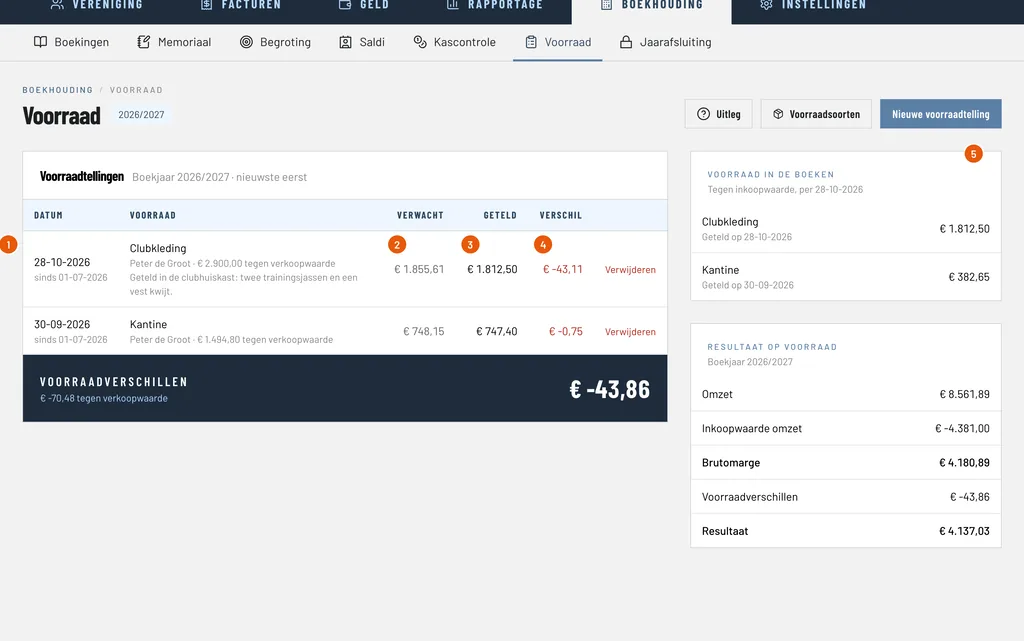
The stock counts with the expected stock, the counted stock and the difference, and the stock in the books

Set up a kind of stock with its purchase and sales price, see how the margin is calculated, how every sale lowers the stock and how a count shows what went missing. With example data and a screenshot of every step.

Read the guide
4 steps

Closing the financial year

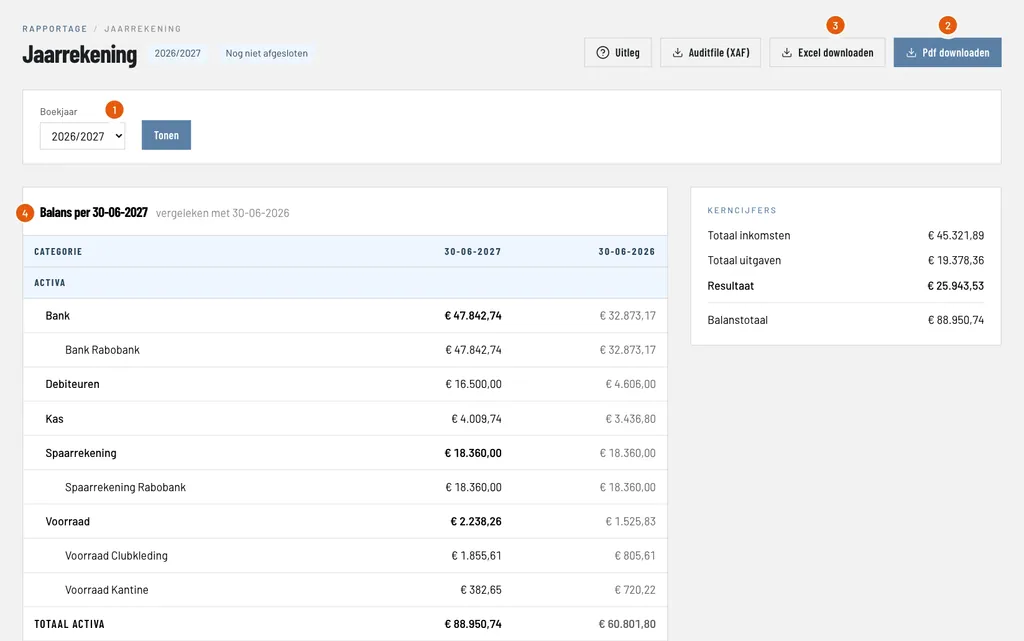
The annual accounts with the choice of financial year, the balance sheet and the buttons for the PDF and the Auditfile

Check the annual accounts, download the PDF and the Auditfile, close the financial year and start the next one. With example data and a screenshot of every step.

Read the guide
4 steps

Scanning card payout reports

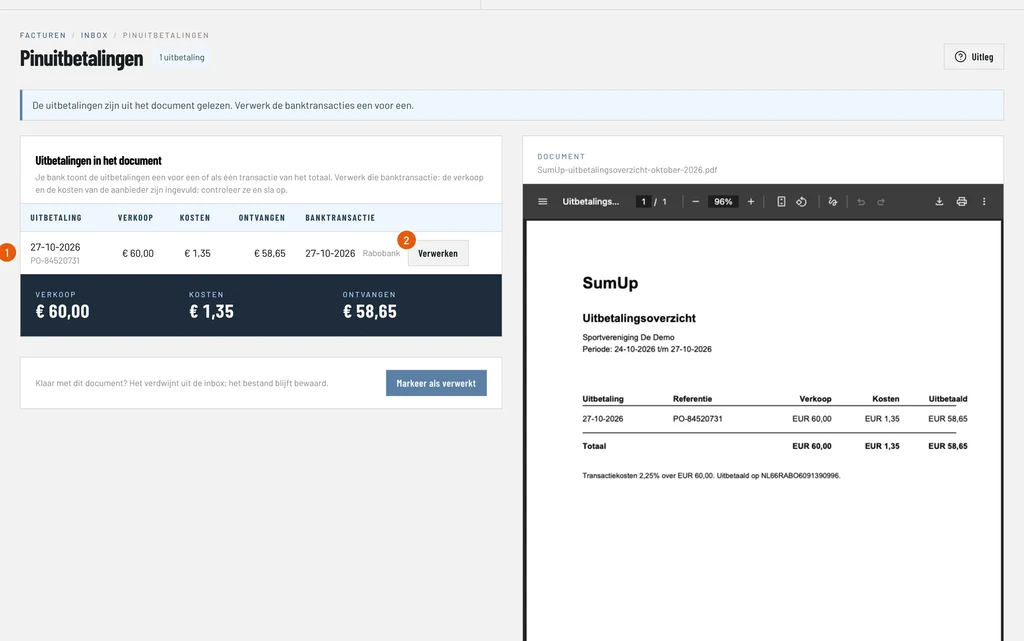
The payout found in the payout report, with the sales, the costs, the amount received and the bank transaction to process

Let AI read the payout report of your card payment provider, find the bank transaction of every payout and process it with the sales and the costs filled in. With example data and a screenshot of every step.

Read the guide
4 steps

Emailing your members

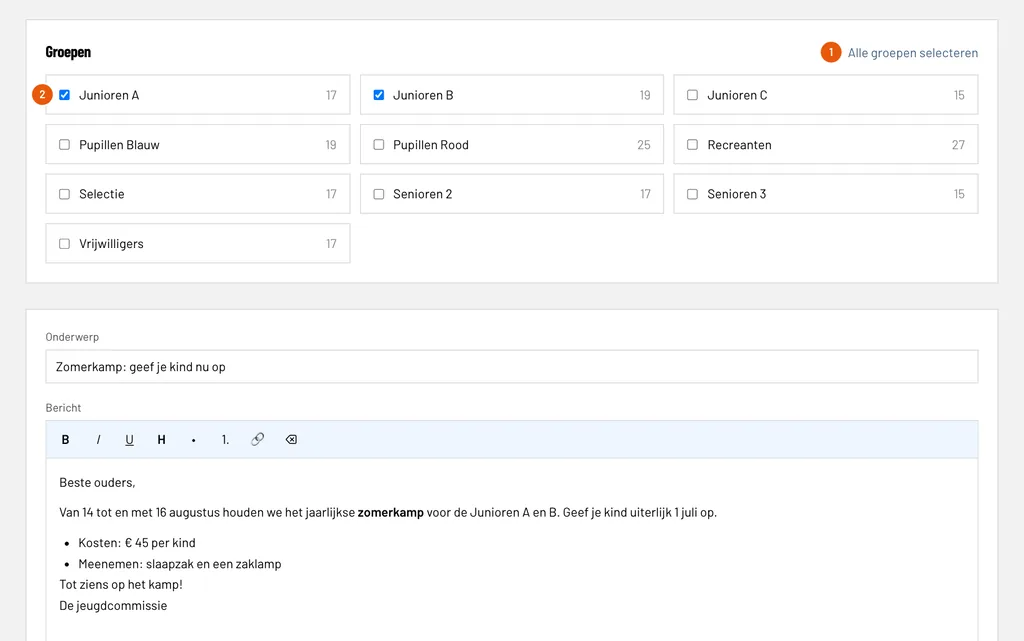
The new mailing form with the groups to choose from, each with its number of email addresses

Choose the groups, write the email, send it after a check and follow the delivery per email address. With example data and a screenshot of every step.

Read the guide
4 steps

Registering loans

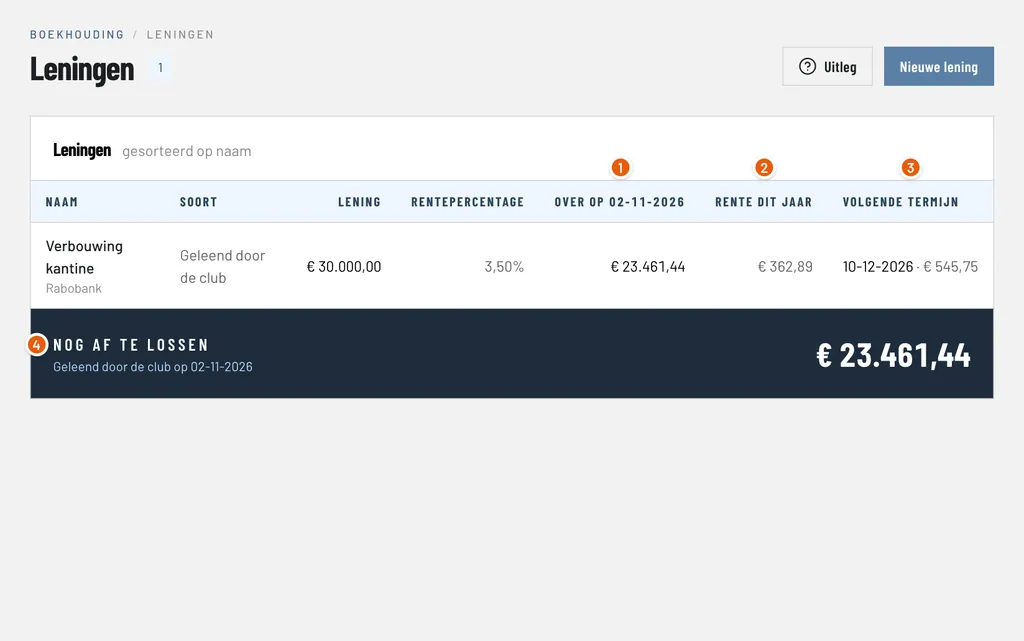
The overview of the loans with the debt that is left, the interest of this year and the next installment

Add a loan with its schedule, process the installments from the bank statement with the repayment and the interest split for you, and see what is left to repay. With example data and a screenshot of every step.

Read the guide
4 steps

Setting up notifications

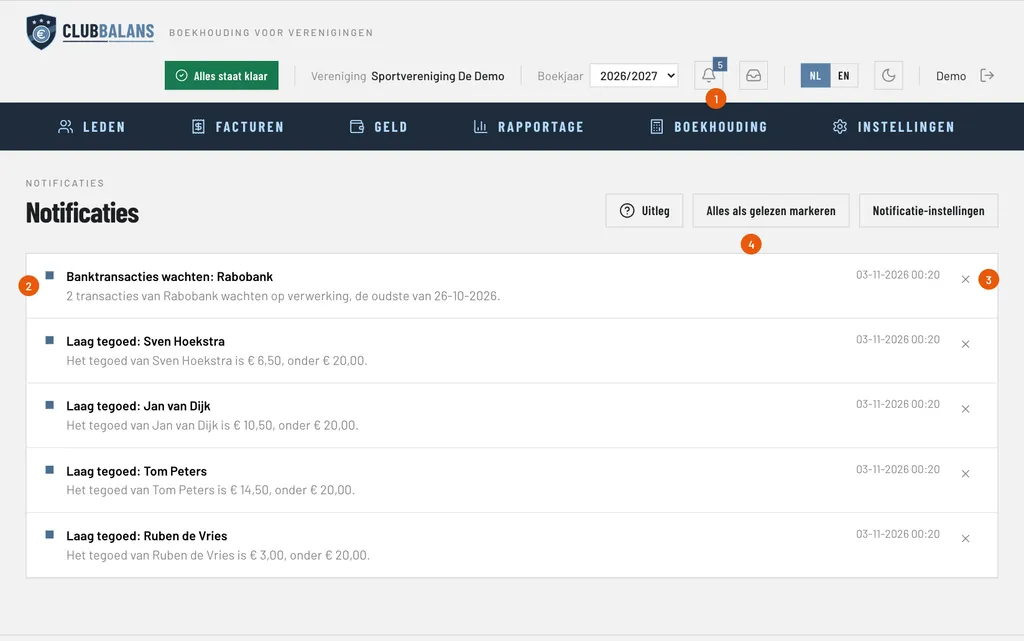
The notification centre with the bell and the number of unread notifications, and a list of notifications

Create a rule that notifies a role or user, test it, read your notifications at the bell and choose whether you get them in ClubBalans, by email or both. With example data and a screenshot of every step.

Read the guide

Bookkeeping

Bookkeeping without the jargon: financial years, an opening balance, a budget and a ready-made chart of accounts for clubs.

Read more

Bank and cash

Import bank statements and ClubBalans suggests the matching invoice for every payment. Keep cash registers and count the cash.

Read more

Bring the books of your club in balance

No payment details needed. Your club is ready in a minute.

Try it free for 14 days

Ask a question

We answer by email.

Before you go

Try ClubBalans free for 14 days

You do not need payment details. Start with your members.