
Step 1: prepare your file
Put the members in a spreadsheet, with one member per row and a row of column names at the top. That is all you need: only the name is required.
Our example file looks like this:
| Membership number | Name | Date of birth | Postal code | City | Groups | Member since | |
|---|---|---|---|---|---|---|---|
| 301 | Lotte Bakker | 12-05-2008 | lotte.bakker@example.com | 3511 AB | Utrecht | Junioren A | 01-11-2026 |
| 302 | Daan Mulder | 03-09-1994 | daan.mulder@example.com | 3512 CD | Utrecht | Senioren 2, Vrijwilligers | 01-11-2026 |
| 303 | Eva Smit | 27-01-2001 | eva.smit@example.com | 3513 EF | Utrecht | Selectie | 01-11-2026 |
A few tips:
- Put several groups in one cell, separated by commas. Groups that do not exist yet are created by ClubBalans.
- Write dates as day-month-year or year-month-day.
- Put a company on its own row with a Company name column. The name in that row is then the contact person.
- Starting from scratch? Download the Excel template in step 2: it already has a column for every field, your own member fields included.
Step 2: open the import and choose your file
In the main menu go to Members (Leden). The Import (Importeren) button is at the top right.
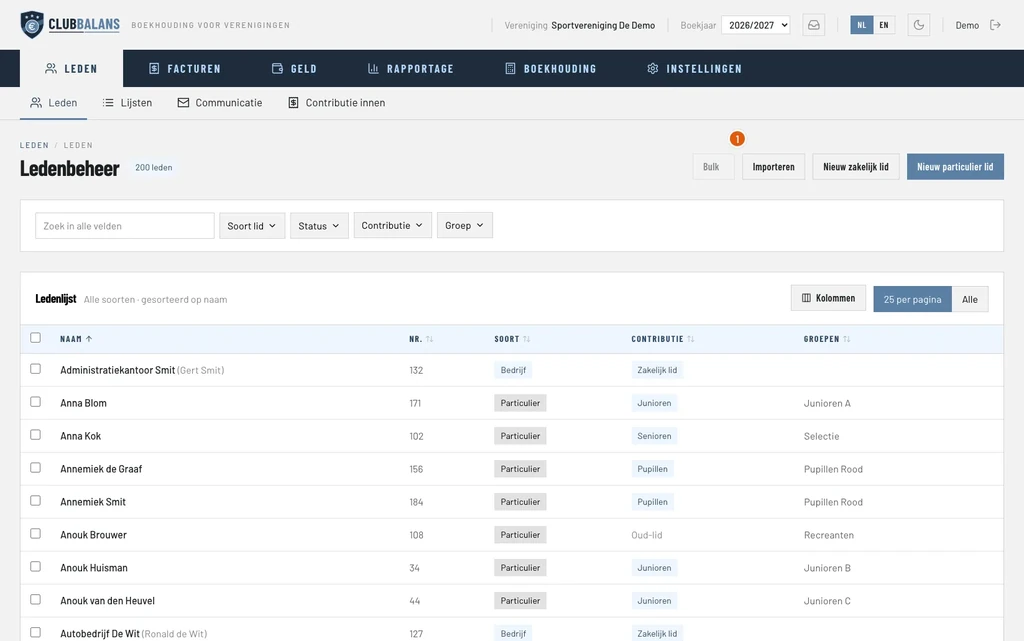
Import: opens the member import. Top right on the member list, next to the buttons to add a single member.
On the first step you upload your file.
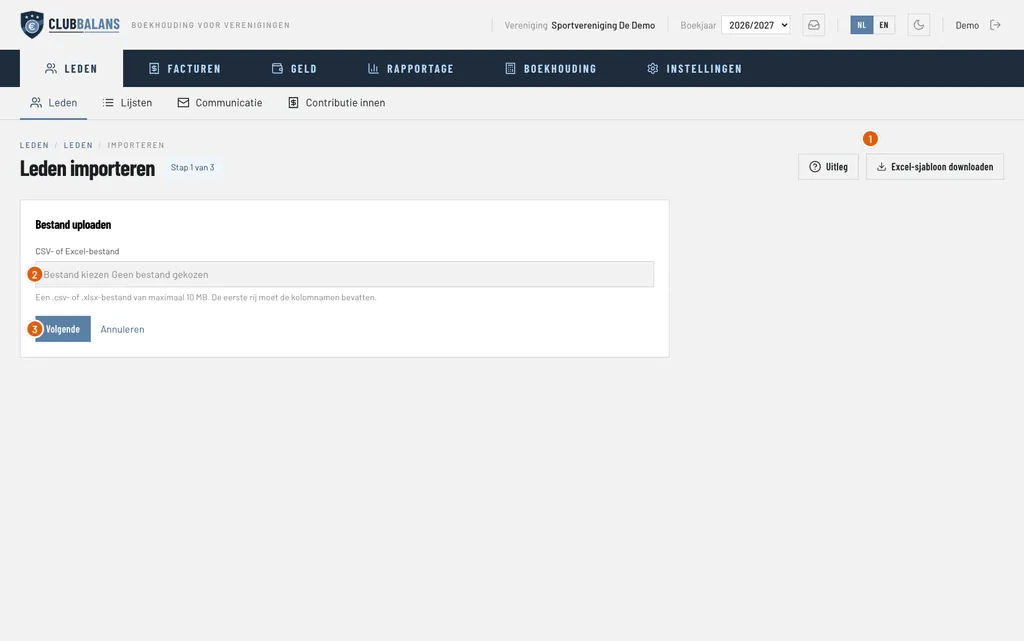
Download Excel template: an empty Excel file with a column for every member field, and dropdowns where the choices are fixed. Handy if you do not have a spreadsheet yet.
CSV or Excel file: choose your file here (.csv or .xlsx, at most 10 MB).
Next: reads the file and takes you to the column mapping. Nothing is added yet.
Step 3: link the columns to the member fields
Now you see every column of your file with its first three values as an example. On the right you choose, for every column, which field of ClubBalans the value goes to. Common column names are recognised automatically, so usually everything is already right.
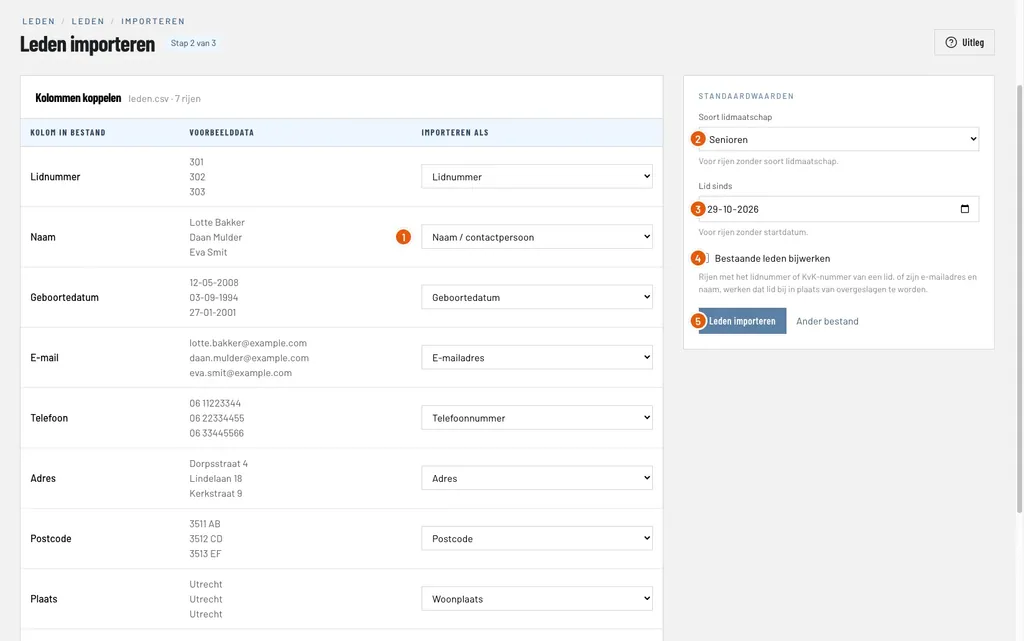
Import as: the field the column goes to, here Name / contact person. Check them against the sample data next to them and change what is wrong. A column you do not need, you set to Do not import.
Membership type: the membership for rows where your file has no column for it, here Senioren.
Member since: the start date for rows without a date of their own. In our example the file has one, so this date is not used.
Update existing members: off by default, so members who already exist are skipped. Switch it on to complete their details with the filled cells of your file.
Import members: runs the import. The members are only added when you click this.
Scroll further down and you also see the last columns of your file, such as Groups and Member since. Set Groups to the Groups field: the members then land in the right teams and committees right away.
Step 4: check the result
After the import you see right away what happened. The result shows how many members were added and which rows were skipped, with the row number and the reason.
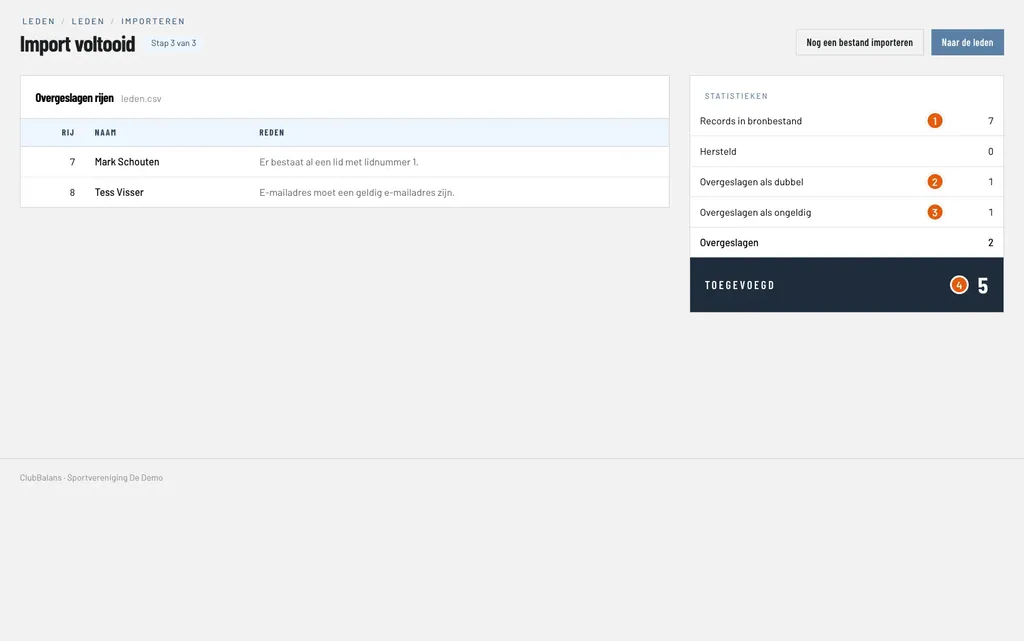
Records in source file: the number of rows in your file, here 7.
Skipped as duplicate: members who already existed, here Mark Schouten with membership number 1. He is not created a second time.
Skipped as invalid: rows with incorrect data, here Tess Visser with an email address without an @. Under Skipped rows you see the reason per row.
Added: the number of new members, here 5. They are now in the member list with their membership, address and groups.
Were rows skipped? Fix them in your file and import it again: the members who are already in are skipped neatly, and only the corrected rows are added.
Good to know
- Your subscription sets how many members you can add. If no places are left, the last rows are skipped with the reason that the subscription is full. An administrator buys extra members on the Subscription page.
- A row with an end date (Member until) becomes a former member and does not take a place in your subscription. Handy for the member history of your club.
- Is your club new to ClubBalans and you would rather not do this yourself? We import your members for free too: read more about the free member import.
- You decide per role who may import members. Read more about roles and permissions.
- Only one member to add? That is quicker with the form for a new member.
- Once your members are in, you collect the membership fees for everyone at once.